Brightspacosaurus User Manual
Publication pipeline for course material from Git to Brightspace
- Author(s): Bart van der Wal, Claude Sonnet 5.5
- Version: 1.0
1. Introduction
Brightspacosaurus (BSO) is a build tool that converts Markdown course material into an IMS Common Cartridge package (.imscc) that you can import directly into Brightspace. Optionally, BSO converts reader Markdown to PDF via pandoc.
Two capabilities set BSO apart from "just Markdown to HTML": a live Docusaurus preview (bso preview) lets you check the same author-visible content behavior before importing into Brightspace, and Markdown quiz files are converted to real QTI 1.2 assessments — not static pages — so they work as native Brightspace quizzes. Preview and export should stay on par; technical implementation details belong in the Software Guidebook.
As an IT lecturer you probably look at a Learning Management System (LMS) a little differently than other lecturers. Where a lecturer thinks in terms of "I upload a file and create a quiz", you think in terms of data models, version control and automation. That is the lens this manual takes: your course material lives as Markdown in Git and BSO publishes it to Brightspace.
This manual describes:
- How Brightspace organizes course material under the hood (data model, import/export)
- How you install and configure BSO
- How you publish course material from Markdown source files (
buildandpack) - How quizzes are converted to QTI and readers to PDF
- The import procedure in Brightspace and the additive import behavior
1.1 Frequently asked questions
1.1.1 What should content look like for an efficient Brightspace export?
You write course material in Markdown. BSO converts this to IMS Common Cartridge (.imscc) that Brightspace imports directly (see Figure 1). One file per lesson, with H1 as the lesson title and H2+ as sections. You link images relatively with images/afbeelding.png. Files with the quiz- prefix are automatically converted to QTI.
1.1.2 How do I organize questions so they can go to multiple systems?
The Markdown source files are the single source of truth. BSO currently generates QTI 1.2 for Brightspace (the Quizzes tool only supports 1.2; Course Import also accepts 2.x/3.x with limited feature support). Other assessment systems such as ANS support QTI 3.0 as an import format.
1.1.3 How do I separate teacher and student material?
Keep teacher and student material in separate source directories. BSO only scans the configured source directory (sourcesDir) for student-visible content. Teacher material (answer keys, didactic explanation) does not belong in that directory. In addition, BSO explicitly excludes files with the suffix -antwoorden-docent from conversion.
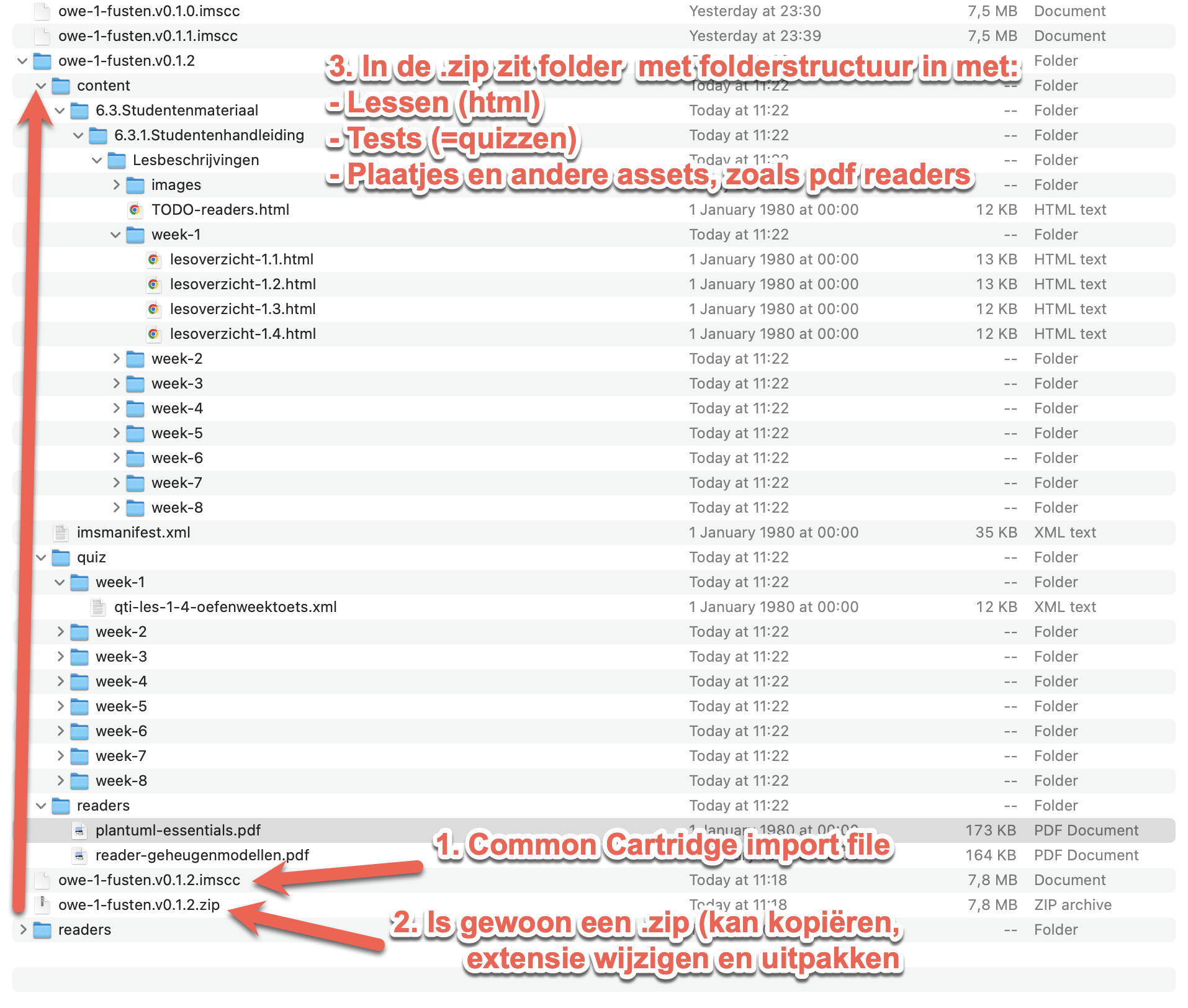
Figure 1: Contents of an unpacked Common Cartridge package.
BSO generates this package format automatically from Markdown source files and images. The archive contains an imsmanifest.xml, content directories with HTML files and images. After import into Brightspace, the lesson pages appear as modules and topics.
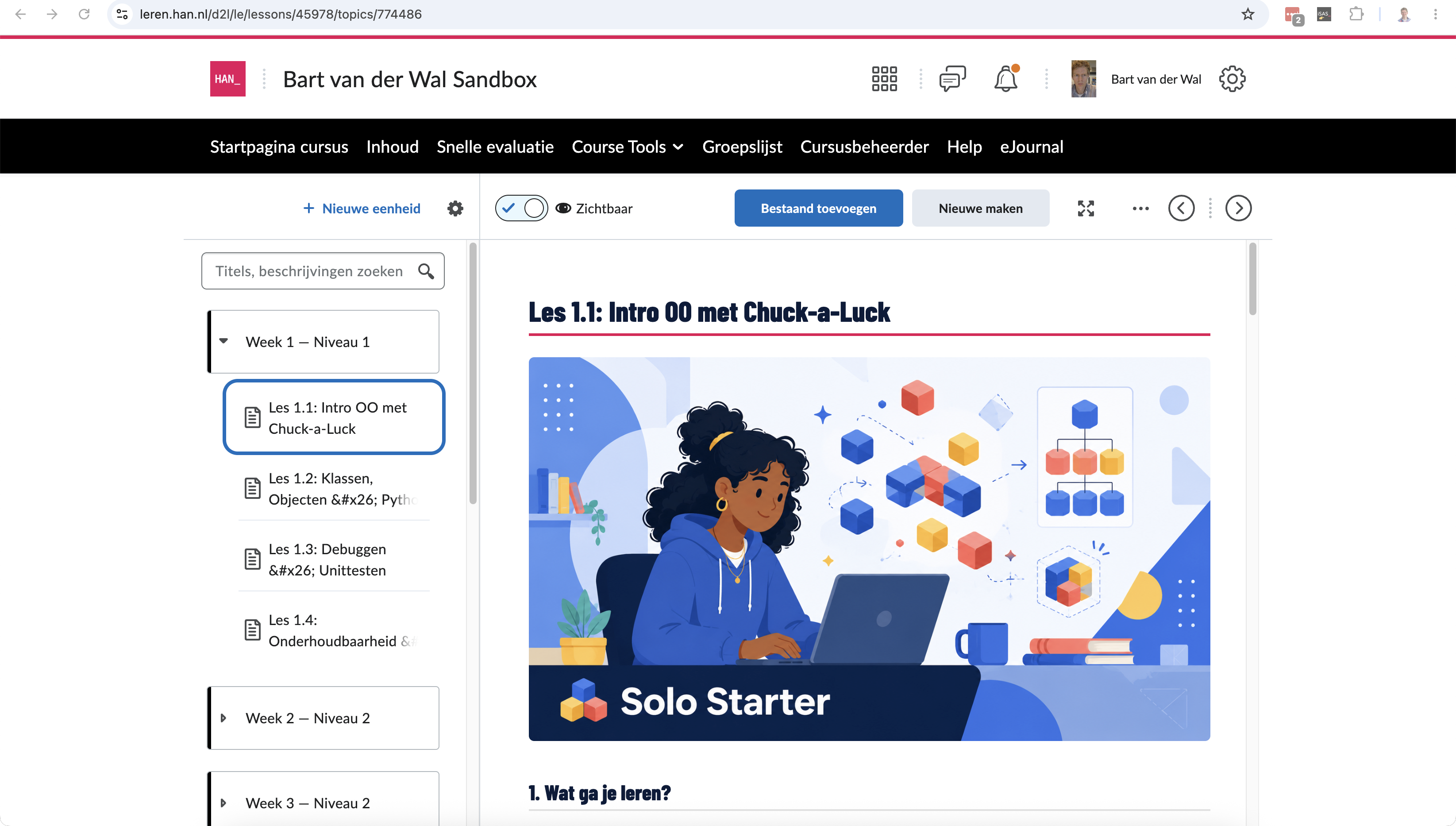
Figure 2: Brightspace Manage Files with reader PDFs.
Readers are generated as separate PDFs via pandoc and uploaded to Brightspace separately. Students download them as reference material.
2. Context: Git, Brightspacosaurus and Brightspace
BSO positions material in Git as the single source of truth (SST) for educational material. Git as the core/SST clashes with Brightspace, because Brightspace was built around the idea that the LMS itself is the place to manage course content.
The BSO process reverses that: Markdown in Git is authoritative; Brightspace is a publication channel.
Advantages of Git over managing directly in Brightspace:
- You have real version control.
- You use a fast text editor instead of a WYSIWYG editor on a web page.
- You can collaborate on educational material; text files in Git lend themselves well to reviews and merge requests.
The terms import and export are therefore confusing:
- From the perspective of Git and BSO it is an export: we export source material to an
.imsccpackage. - From the perspective of Brightspace it is an import: Brightspace imports that
.imsccpackage into a course. - In this manual we therefore use: BSO export for creating the package and Brightspace import for bringing it into Brightspace.
Ideally the pipeline will later gain Brightspace API access. Then BSO could not only create the .imscc file, but also delete existing modules/topics or import the package automatically. As long as that API route is missing, the import remains partly manual. As a temporary workaround for the additive import behavior, BSO ships an optional cleanup script (see §11).
Teacher material requires a separate choice. Brightspace can hide content or restrict its availability, but BSO deliberately exports only the student-visible source directory. A real teacher publication can be done in three ways:
- A separate Brightspace course or sandbox for teacher material.
- A separate, hidden module in the same course, manually restricted to teachers after import.
- No Brightspace publication: teacher manuals stay in Git or as a PDF outside the student course.
For most situations, option 3 is the least risky: teacher material contains answers and internal choices that must not accidentally become student-visible.
3. Brightspace data model
Brightspace (D2L) organizes course material primarily through a course offering with Content modules and topics. D2L describes that lecturers can create modules, submodules and topics in Content; topics can contain files, text and HTML, among other things (D2L, n.d.-a).
| Entity | Brightspace term | Analogy |
|---|---|---|
| Course | Course Offering / Org Unit | A repository |
| Module | Content Module | A folder/package |
| Page | Page | An HTML page in Brightspace |
| Topic | Content Topic | A linked item in a module, such as a page, file, link or activity |
| Quiz | Quiz Activity | An assessment object with items |
| Assignment | Dropbox Folder | A submission location |
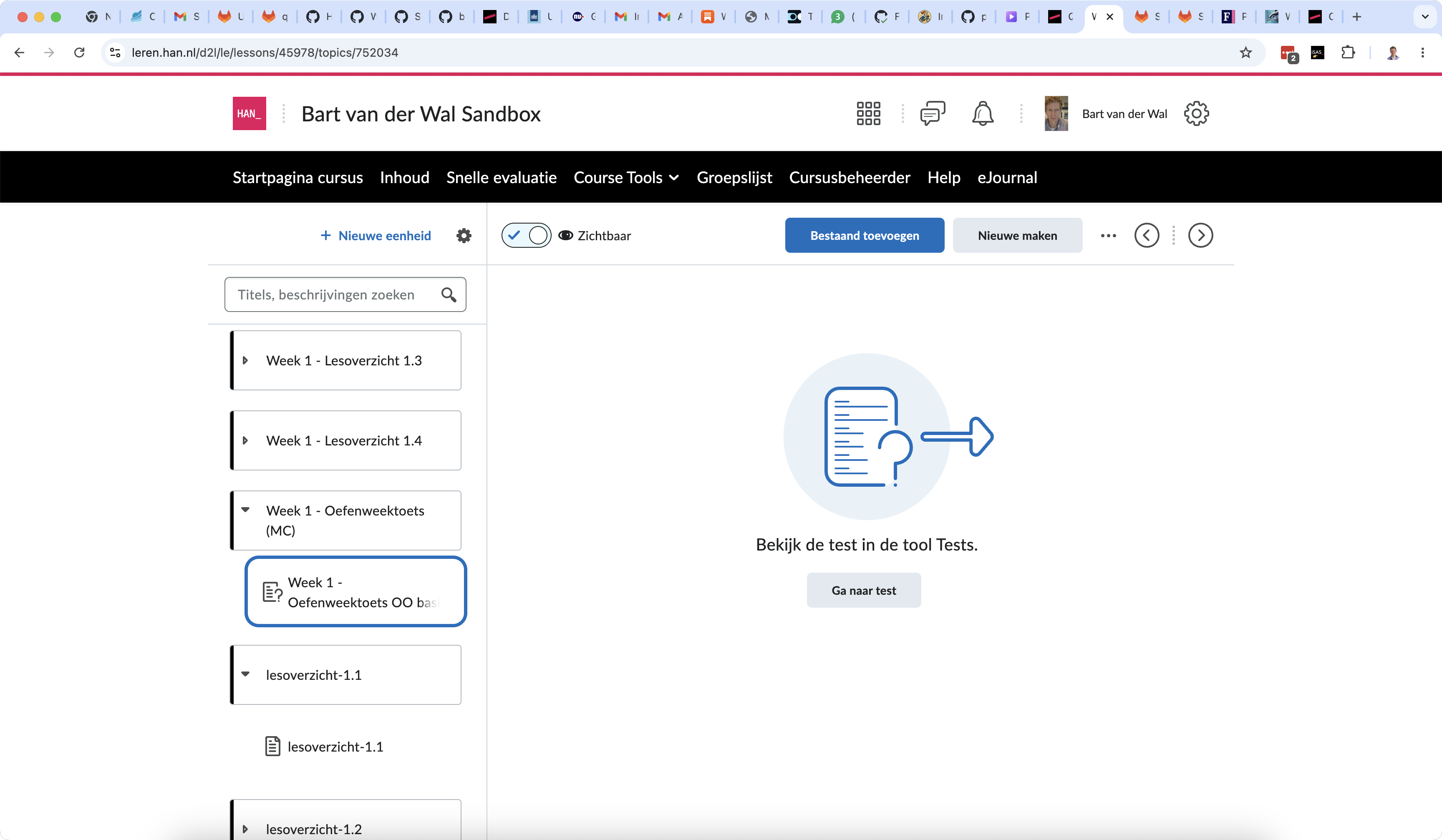
Figure 3: Brightspace link to a test or quiz from course material.
A module contains topics. A topic can be a Brightspace Page, but also an added file or an existing activity. When creating course content, D2L explicitly mentions the route Create New > Page within a module (D2L, n.d.-b).
A quiz is not an ordinary content page. D2L describes that a quiz can be created from Content or directly from the Quizzes tool, and that students can also open quizzes via the Quizzes tool (D2L, n.d.-c; D2L, n.d.-d). From course material you can also include a link to a quiz (see Figure 3).
An assignment can be created as a new assignment from Content, but functionally remains part of the Assignments tool (D2L, n.d.-e).
Images and HTML files used as content end up in Brightspace as course files / Manage Files content. D2L describes that a file can be designated as a Content topic from Manage Files and warns that moving such a file can break links (D2L, n.d.-f).
4. Installation and configuration
4.1 Requirements
- Deno ≥ 1.40: runtime for Brightspacosaurus
- Pandoc (tested with 3.9): for reader PDF conversion via xelatex. Compatibility with other versions is not guaranteed (Pandoc does not follow semver but its own
EPOCH.MAJOR.MINOR.PATCHscheme (Pandoc, n.d.)). Only needed if you generate readers or a teacher manual PDF. - TeX Live with
xelatex— PDF engine (on macOS:brew install --cask mactexorbrew install basictex)
4.2 Configuration
All project-specific settings are managed via a brightspacosaurus.config.json in the root of your course project. By default BSO looks for this file in the working directory (Deno.cwd()); with --config <path> you can specify a different path. CLI arguments always take precedence over values from the configuration file.
A minimal configuration file:
{
  "courseName": "Cursus X",
  "version": "1.0.0",
  "sourcesDir": "bronmateriaal/lessen/"
}
The most important fields:
| Field | Required | Description |
|---|---|---|
courseName | yes | Course name as shown in the manifest |
version | yes | Version number (semver), used in the .imscc filename and HTML badge |
sourcesDir | yes | Source directory for lesson pages and quizzes |
docusaurusDocsDir | no | Docusaurus docs-plugin root for document IDs (default: parent of sourcesDir) |
readersDir | no | Source directory for reader Markdown (PDF conversion via pandoc) |
readerCoverLogo | no | Logo on every reader PDF cover page, relative to the repository root |
teacherDashboard.module | no | Content module (slug, optional title) that holds the Voortgangsverkenner after the teacher page; default a separate instructor module; see 4.8 |
menu.overviewHeadings | no | Headings of the overview section in a module's lead page, default ["Overview", "Overzicht"]; see 8.2 |
readersModule | no | Menu module for the reader PDFs: slug (default readers) and title; see 8.2 |
readerChapterNewPage | no | Start every chapter of a reader PDF on a new page (default true) |
assetsDir | no | Directory with static assets (banners, logos) |
outputDir | no | Build output directory (default build/brightspace) |
publishDir | no | Folder for the files you publish on purpose (the current .imscc, pptx files); bso pack fills it. For version control, unlike outputDir; see 6.2. No default: without it BSO writes nothing outside outputDir. We recommend publicaties |
slides.lessons | no | Mapping from lesson Markdown paths (relative to sourcesDir) to slide globs (relative to repository root); matching decks go into the preview and .imscc |
slides.generateForPrefix | no | Generate slides for source Markdown filenames beginning with this case-sensitive prefix; explicit slides.lessons entries override it |
slides.notes | no | true keeps presenter notes in .imscc slides; default false removes them (the preview always shows them) |
slides.disclaimer | no | Banner on every presented slide; default Preview; "" disables it |
slides.pptx | no | true also writes every manual deck as an editable PowerPoint file; default false. A deck overrides it with pptx: true, pptx: false or pptx: auto in its front matter |
slides.lessons.<lesson>.pptx | no | true also writes the generated deck of that lesson, nested pages included, as an editable PowerPoint file; false leaves it out when slides.pptx is true. Needs generate: true |
slides.theme | no | Marp theme CSS file, relative to the repository root; overrides deck-level theme selection in preview and the .imscc |
slides.logo | no | Logo on .lead slides, relative to the repository root; defaults to readerCoverLogo |
quiz.shuffleAnswers | no | Random answer order in QTI and quiz preview (boolean, default false) |
quiz.maxAttempts | no | Maximum number of attempts for generated quizzes (default 0, unlimited) |
quiz.locale | no | Language of the quiz labels and default headings: en or nl. Defaults to diagrams.locale (the general language of BSO's generated labels), and to en when neither is set |
quiz.assignmentPrefix | no | Custom assignment heading prefix; overrides the locale default |
quiz.questionPrefix | no | Custom prefix for standalone questions; overrides the locale default (Question, Vraag) |
quiz.subquestionPrefix | no | Custom prefix for assignment subquestions; overrides the locale default (Subquestion, Deelvraag) |
diagrams.krokiUrl | no | Kroki endpoint for PlantUML/Mermaid rendering (default https://kroki.io) |
diagrams.output | no | Diagram embedding mode (default img-html-base64) |
diagrams.locale | no | Language of generated labels: diagram UI and reader PDF cover and document language (nl or en, default nl) |
diagrams.failOnError | no | Fail on diagram errors (default true); when false, warn and keep the original code block |
flashcards.sectionHeadings | no | Headings whose term/definition lists become flashcards (default ["Core concepts"], [] disables); see 4.4 |
teacherPage | no | Teacher page in sourcesDir that shows the imported versions (default for-teachers.md); see 4.7 |
Full configuration reference: see the README.md for all configurable fields, default values, CLI flags and an extensive example. A ready-to-use example is available in
brightspacosaurus.config.example.jsonand in theexamples/directory.
Missing optional configuration is silently skipped: without readersDir BSO skips the reader PDF conversion, without teacherManual it skips the teacher manual generation.
4.3 Reusable Markdown includes
An include inserts another Markdown file at the exact location of the directive. The include target must always be a Markdown link:
{@include: [Learning goals](../partials/learning-goals.md)}
This syntax has two purposes. BSO can resolve the link during HTML and reader-PDF generation, while the source remains a normal, clickable Markdown link in an editor such as VS Code and in a Docusaurus preview. The visible link text is only an editor-facing label; BSO follows the link target and inserts the target file's Markdown content.
The older bare-path form is deliberately invalid:
{@include: ../partials/learning-goals.md}
It produces an error instead of silently accepting content that is not clickable in the source. HTML links such as <a href="...">...</a> are not accepted as include syntax either; use the Markdown-link form. bso lint reports invalid include directives before a build is started.
Includes are resolved relative to the Markdown file that contains them. The same directive can therefore be used in lesson pages, reader Markdown and other included Markdown files, provided the relative path is correct.
Include-only partials must not appear as pages of their own. Keep them outside sourcesDir (as the demo course does with partials/), or prefix the file or folder with an underscore, e.g. lessons/_shared/learning-goals.md. BSO skips _-prefixed files and folders when scanning, and Docusaurus excludes them by default. The Docusaurus preview expands includes with the same code as the export, so partials do not need to be in the docs include list.
4.4 Core-concept flashcards
Flashcards support retrieval practice: a student tries to recall the definition before revealing it. This is useful for short core concepts such as terminology, APIs and testing vocabulary. The Learning Scientists describe the same concept-card pattern as writing the concept name on one side and its definition on the other, then saying or writing the answer and revisiting concepts that were difficult: Be Your Own Teacher: How to Study with Flashcards.
Student story: As a student, I want to practise the key terms from a lesson one at a time, so that I can actively recall a definition, reveal it when needed, and repeat the terms I do not yet know.
Use a flashcards container with one flashcard container per concept. The outer container must use four colons (::::flashcards / ::::), while each inner card uses three (:::flashcard / :::). Using three for both closes the set too early; bso lint detects this. The term: line is the short front of the card. The Markdown block below it is the definition and may contain emphasis, inline code, links, lists or multiple paragraphs:
::::flashcards

:::flashcard
term: Unit test

A **unit test** checks one small part of a system _in isolation_.
:::

::::
For lightweight cards, use a normal bullet list inside a single container (no inner directives):
:::flashcards

- **request:** A client asks a server for data or an action.
- **response:** The server sends the result back, for example `200 OK`.

:::
Sections titled Core concepts become flashcards automatically. To recognize other glossary headings, configure their titles in brightspacosaurus.config.json:
{
  "flashcards": {
    "sectionHeadings": ["Kernbegrippen", "Kern begrippen", "kern concepten"]
  }
}
This is an optional fragment to add to your existing course configuration. The list replaces the default ["Core concepts"]; [] disables automatic heading recognition. With that setting, this plain Markdown becomes a flashcard set:
## Kernbegrippen

- **request:** bericht waarmee een client een server om een handeling of gegevens vraagt.
- **response:** bericht waarmee de server het resultaat van een request terugstuurt.
- **statuscode:** HTTP-code die het resultaat van een request aanduidt, bijvoorbeeld `200`.
BSO always supports both syntaxes, without a setting. Lists under these headings stay real bulleted lists: each clickable term and its short definition share a line, and only the definition is hidden, so a long glossary stays compact. Rich definitions with multiple paragraphs or lists keep their block layout. Explicit ::::flashcards sets show boxed cards, also under a flashcard heading. The "Show definitions" / "Hide definitions" button follows diagrams.locale (Toon definities / Verberg definities for nl). Terms are real buttons with aria-expanded, so keyboard and screen readers work.
Heading titles match exactly after trimming and ignoring letter case and a leading section number, so ## 7. Kernbegrippen and ### 2.3 Kernbegrippen match Kernbegrippen; all heading levels work. The section includes subsections and ends at the next heading of the same or a higher level. Conversion preserves headings and other content, but bso lint warns if the section contains anything other than complete term/definition bullet lists or a ::::flashcards set, so a heading without any flashcards is reported. The default heading Core concepts (any letter case) is checked even when flashcards is not configured. Place introductory prose before the heading or in a separate section.
Each unordered list is converted only when every item has a non-empty term before the first colon (:) and a non-empty definition after it. Plain, bold and inline-code terms work, with the colon inside or outside their formatting. Definitions retain Markdown formatting, links, subsequent paragraphs and nested lists. Additional colons belong to the definition. Numbered lists, task lists and lists with incomplete items remain ordinary Markdown in full; other sections are unaffected.
The demo's “Core Concepts Flashcards” lesson includes both directive cards and an English Core concepts list, using "sectionHeadings": ["Core concepts"]. Both the Brightspace HTML export and the configured Docusaurus preview use the same transformation. For your own Docusaurus app, pass the same flashcards options to remarkFlashcards; see the demo configuration. bso preview supplies the selected course's options through BSO_PREVIEW_FLASHCARDS_CONFIG; direct Docusaurus builds must read them from the course configuration.
BSO renders the definitions as normal HTML first. JavaScript progressively adds global and per-card reveal controls, while keyboard focus and aria-expanded communicate state. If JavaScript is unavailable or storage is blocked, the definition remains usable. Flashcards are practice support, not a Brightspace quiz or formal assessment; use the QTI quiz format for graded questions.
The current implementation does not persist a student preference across pages until Brightspace storage behavior has been validated in a real course. The fallback is intentionally safe: no storage is required for the cards to work.
For Docusaurus preview parity and implementation details, see the Software Guidebook and CONTRIBUTING.md. The demo uses the same remarkFlashcards transformation, CSS and brightspacosaurus-flashcards.js initializer as Brightspace. Docusaurus invokes the initializer after hydration and every client-side navigation.
4.5 Linting course material
bso lint applies developer best practices to course material: it checks flashcards, includes, diagrams, quiz authoring and source hygiene (frontmatter in lessons, hard-wrapped paragraphs) before you export, without building or contacting external services, so mistakes surface in your editor or CI instead of after the Brightspace import. It starts by saying which directories and how many files it scanned. It reports file:line:column, severity and rule. Errors return exit code 1; warnings alone return 0.
The error or warning word is colored (red and dark orange) only when stderr is a terminal, NO_COLOR is not set and TERM is not dumb; in a pipe or log the output stays plain. Only that word is colored, so file:line:column stays clickable. When there are diagnostics, one blank line precedes the summary line Checked N Markdown files: X errors, Y warnings.
lesson-frontmatter (warning) reports YAML frontmatter keys that BSO ignores in a lesson file, and names them. BSO reads two keys from a lesson's frontmatter: sidebar_position, a number that orders the page in the Brightspace menu (see 8.2), and draft: true, which leaves the page out of the menu and the package; neither triggers the warning, but a sidebar_position that is not a number does. Readers use title, author, version, date, updated, coverImage, coverAlt and lintHeadingNumbers instead. For any other key in a lesson, put the title as a # heading and remove the rest. The rule does not apply to readers, quizzes or included files.
module-index-title (error) reports a first-level module index.md without a non-empty H1. Its H1 supplies the module title; a YAML title: field is not used. docusaurus-category-metadata (warning) reports _category_.json files in sourcesDir: BSO does not read these Docusaurus files.
downloadable-missing, downloadable-too-large and downloadable-path (errors) report local download links that are missing, exceed 50 MiB, or point outside sourcesDir / use invalid URL encoding.
reader-heading-numbering (error) requires manual hierarchical numbers on reader section headings and checks their order, gaps and repeats. It also checks appendix letters (Bijlage A, Bijlage B, or Appendix A, Appendix B) and keeps Bronnen, Sources, Literatuurlijst, Versiegeschiedenis, Bijlagen and Appendices unnumbered. The order of a reader is chapters with numbers, then Bronnen, then an unnumbered Bijlagen with Bijlage A, Bijlage B, ... under it (## Bijlagen with ### Bijlage A: ..., or ## Bijlage A: ... straight after Bronnen); a number or letter on Bijlagen itself is an error. Add lintHeadingNumbers: false to a reader's frontmatter to opt out.
deep-relative-path (warning) reports a link, image or {@include} target with four or more ../ in a row, such as ../../../../shared/notes.md. Three are accepted: a shared folder next to the week folders is a normal layout. A path like that breaks as soon as the file moves. Move the file closer, or into a shared folder inside sourcesDir, and use a shorter path. BSO has no root-relative paths (a path starting with /), so shortening the path is the fix, not a leading slash. The rule skips code blocks and inline code.
slides-empty-separator (warning) reports, in a slide deck (slides: true or marp: true), a --- that makes Marp show an empty slide: one that opens the deck, follows another ---, ends the deck, or sits directly before a heading that headingDivider already starts a slide at (blank lines and HTML comments in between are ignored). A --- with content after it, before the next heading, stays valid: it splits one section over two slides. The rule skips the front matter and code blocks. Remove the ---, or put content between it and the heading. When BSO joins a generated deck and a manual deck that has headingDivider, it adds no --- before such a heading either.
slides-deck-invalid (error) reports a slide deck that a decks pattern of slides.lessons selects, but whose front matter has both slides and marp; it is unclear which of the two makes it a deck, so BSO no longer skips it without a word (the preview and the build fail with the same message). bso lint also checks the decks that slides.lessons selects outside sourcesDir, so slides-empty-separator finds an empty slide there too, and the build prints a warning when a decks pattern matches no file.
path-whitespace (warning) reports a folder or file name under the scanned directories with whitespace that causes trouble: a space at the start or end of a name or before the extension, two spaces in a row, or a tab or no-break space. A single space is reported too, because a URL and the preview show it as %20; use a hyphen. Each name is reported once, also when it is a folder with many files in it.
unexpected-file (warning) reports a file in the course folders whose type does not belong there, for example an .xml file or an .imscc export that may be left over from an old QTI quiz. These types are expected without a word: .md, images (.png, .jpg, .jpeg, .gif, .svg, .webp), .pdf, .zip, .pptx, .docx, .xlsx, .csv, .txt and .json. Dot files and node_modules are skipped. Add other types with lint.allowedFileTypes, for example { "lint": { "allowedFileTypes": [".xml"] } }.
link-to-unpublished-page (warning) reports a link in a lesson to a .md file with an underscore in its path (_cgi/form.md, a/_b/c.md). Such a file is not published: it is an include-only partial, or the source of a nested page (nest). On the page the link shows as plain text, without a link, so a student does not meet a dead link; the slides can still include the file with nest, so the pages of an appendix need no lesson of their own in Brightspace. A {@include} of such a file is fine and is not reported.
hard-wrapped-lines (warning) reports a paragraph that looks wrapped at a fixed column: three or more lines that are all at least 50 characters long and differ by at most 25 characters. Markdown renders such line breaks as spaces, so the output does not change, but diffs get noisy and AI-assisted editing has to rewrap text. Write each paragraph on one line and let the editor wrap it. Breaks that end in two spaces or a backslash are intentional and ignored.
Quiz bias rules check that students cannot score without knowing the material. quiz-length-bias and quiz-reverse-length-bias (warnings) report a quiz where the correct option is the unique longest or shortest option in more than 40% of the questions (from four questions). quiz-answer-length-ratio (warning) reports a question whose correct option is more than twice as long as its shortest option. quiz-only-giveaway (warning) reports signal words such as "Alleen", "Alle bovenstaande" and "Geen van bovenstaande" at the start of options that are never correct. quiz-position-bias (warning) reports one letter that is correct in more than 45% of the questions (from six questions). quiz-answer-key-mismatch (error) reports a quiz and its quiz-*-antwoorden-docent.md that name a different correct answer. Adjust the thresholds and signal words to match the course language:
{
  "lint": {
    "quizBias": {
      "maxLongestShare": 0.4,
      "maxShortestShare": 0.4,
      "maxLetterShare": 0.45,
      "maxLengthRatio": 2,
      "minQuestionsForLength": 4,
      "minQuestionsForPosition": 6,
      "giveawayWords": [
        "alleen",
        "alle bovenstaande"      ]
    }
  }
}
By default, lint scans sourcesDir, readersDir and their linked Markdown includes. To select only specific folders or subfolders, add this fragment to your configuration:
{
  "lint": {
    "includeDirs": ["lessons/week-1", "lessons/week-2"]
  }
}
These paths are relative to the current working directory and replace the default source/reader inputs. They must remain inside the project root. bso lint --sources lessons/week-1 overrides the selection. Linked includes are always checked as dependencies.
For the repository's regression examples, run bso lint in examples/demo-course (no diagnostics) and in examples/demo-course-antipatterns (30 intentional diagnostics and exit code 1). The antipattern course has its own configuration and exactly one file for each linter rule. bso lint starts with the directories and file counts it scanned.
4.6 Links between lesson pages
Link to other lesson pages with a normal relative Markdown link, such as [FAQ](../faq.md). BSO turns it into a link to the generated HTML page, so it also works in editors and in the Docusaurus preview.
In Brightspace a lesson page opens in a frame inside the course viewer. A plain link would open the next page inside that frame, while the content menu keeps showing the previous topic. Exported pages therefore contain a small script: after a click on a lesson link, it looks up the target topic in the course's table of contents (with the student's own Brightspace session) and lets Brightspace open that topic. The menu, previous/next navigation and progress then match the page on screen. If the lookup fails, for example because the target page is not a topic in the course, the plain link opens as before. Links with a new-tab target, external links and PDF links are left alone.
4.7 Teacher page
A teacher page is a lesson page you write yourself for teachers, for example with import instructions and contact details. BSO fills in the imported versions, so teachers can check after an import that Brightspace shows the current material. Later, the GitLab progress dashboard (#37) will appear on the same page.
By default BSO uses for-teachers.md in sourcesDir. Choose a different file with teacherPage, relative to sourcesDir:
{
  "teacherPage": "voor-docenten.md"
}
Place the directive {@bso-versions} on its own line where the version table belongs:
# For teachers

## Version information

{@bso-versions}
BSO replaces the directive with a table containing the course name and version from the configuration and the Brightspacosaurus version. Without the directive, the table follows the page's first H1. Directives in code blocks and on other pages stay unchanged. The Docusaurus preview shows the same table.
If the default page does not exist, BSO skips it without a message. If a configured teacherPage does not exist, bso build fails. The page is a normal topic in the cartridge: hide it for students in Brightspace after each import. It contains no secrets.
4.8 Teacher progress dashboard (Voortgangsverkenner)
When courses use GitLab for student assignments, instructors can monitor student work item progress across student repositories using the built-in Voortgangsverkenner (Teacher progress dashboard).
BSO generates this standalone client-side dashboard page at content/docenten/voortgangsverkenner.html and packages it into the instructor module (module_docentenmateriaal) in imsmanifest.xml. After importing the Common Cartridge into Brightspace, instructors keep this module hidden from students.
To avoid an extra module in the menu, put the dashboard in a content module with teacherDashboard.module, for example the module that holds the teacher page. The dashboard then comes directly after the teacher page and the "Instructor material (hide after import)" module is no longer created:
"teacherDashboard": { "module": { "slug": "algemeen" }, ... }
slug is the folder name in sourcesDir, the same form as readersModule; the optional title sets the module title. If no content folder has that name, BSO creates a separate module with that title (or the slug). Without module nothing changes. Like the teacher page, instructors set the dashboard item to hidden from students after import. The dashboard shows no data without a GitLab token, so this is no data leak, but it avoids confusion.
Configure the dashboard under teacherDashboard in brightspacosaurus.config.json:
{
  "teacherDashboard": {
    "gitlabUrl": "https://gitlab.aimsites.nl",
    "groupPath": "2026p1-fusten",
    "subgroups": ["Arnhem", "Nijmegen"],
    "repos": [
      { "prefix": "pod", "label": "POD" },
      { "prefix": "n1-chuck-a-luck", "label": "N1 Chuck-a-luck" },
      { "prefix": "n2-ticketfaster-api", "label": "N2 TicketFaster API" },
      { "prefix": "n2-expense-pro", "label": "N2 Expense Pro" },
      { "prefix": "n3-ticketfaster-frontend", "label": "N3 TicketFaster frontend" },
      { "prefix": "n3-expense-pro", "label": "N3 Expense Pro" }
    ],
    "teacherUsernames": ["docent1", "docent2"],
    "orangeThresholdPercent": 10,
    "redThresholdPercent": 50,
    "requireCommentsForDone": false
  }
}
For date-aware week focus, optionally add a weeks calendar. Each repository prefix must be assigned to exactly one week, and weeks must be listed in ascending date order:
{
  "teacherDashboard": {
    "weeks": [
      { "title": "Week 1", "startsOn": "2026-09-01", "repos": ["pod", "n1-chuck-a-luck"] },
      { "title": "Week 2", "startsOn": "2026-09-08", "repos": ["n2-ticketfaster-api", "n2-expense-pro"] },
      { "title": "Week 3", "startsOn": "2026-09-15", "repos": ["n3-ticketfaster-frontend", "n3-expense-pro"] }
    ]
  }
}
The dashboard opens the current week by default, leaves earlier weeks collapsed and dims later weeks. Use Weekfocus to switch weeks manually. Work items are grouped by their configured repository; unfinished work in a future week is neutral and does not count as backlog. Refreshing a week updates its repositories and keeps the other weeks' cached data. Without weeks, refresh applies to the whole class. See the local-cache behavior and privacy warning under Using the dashboard below.
Security and token handling
- The dashboard authenticates against GitLab with a fine-grained personal access token with read-only permissions. A classic token with scope
read_apialso works, but grants far more than the dashboard needs. - No secrets in cartridge: The token is never written into the configuration or the exported package.
- In-memory storage: The dashboard keeps the token only in browser memory while the page is open. It is never persisted to
localStorageorsessionStorage(preventing other scripts in Brightspace from reading it). - Password manager support: The token input uses
<input type="password" autocomplete="current-password">with a hidden username field so instructors can securely store and autofill it via their browser password manager.
Creating the access token
Create a fine-grained personal access token in GitLab under User settings → Personal access tokens → Generate token:
- Under Group and project access, choose Only specific group or projects that I'm a member of and select the course group (for example
2026p1-fusten). The token then covers its subgroups and projects, and nothing else. - Grant Read permissions only, in three categories:
- Project Planning:
Work Item: Read(issues and their comments) andLabel: Read. Without this category every repository shows "Token mist leesrechten voor deze repo (403)". - Repository: only
Commit: ReadandMerge Request: Read. Merge requests are shown when they are linked to a work item, with their commits. The dashboard reads commit titles, authors and links to match commits to work items (#<iid>in the message) and to link to them. It never reads file contents, soCode: Read, branches, tags and the other repository permissions are not needed. WithoutCommit: Readthe dashboard finds no commits, so finished work items turn orange; the repository view then shows a warning. - Groups: only
Group: Read, to list the projects in each subgroup.
- Project Planning:
- Do not grant member permissions. The dashboard links repositories to students by project name, not by membership, so it does not need to read member data.
- Choose a short expiry date, for example the end of the course period.
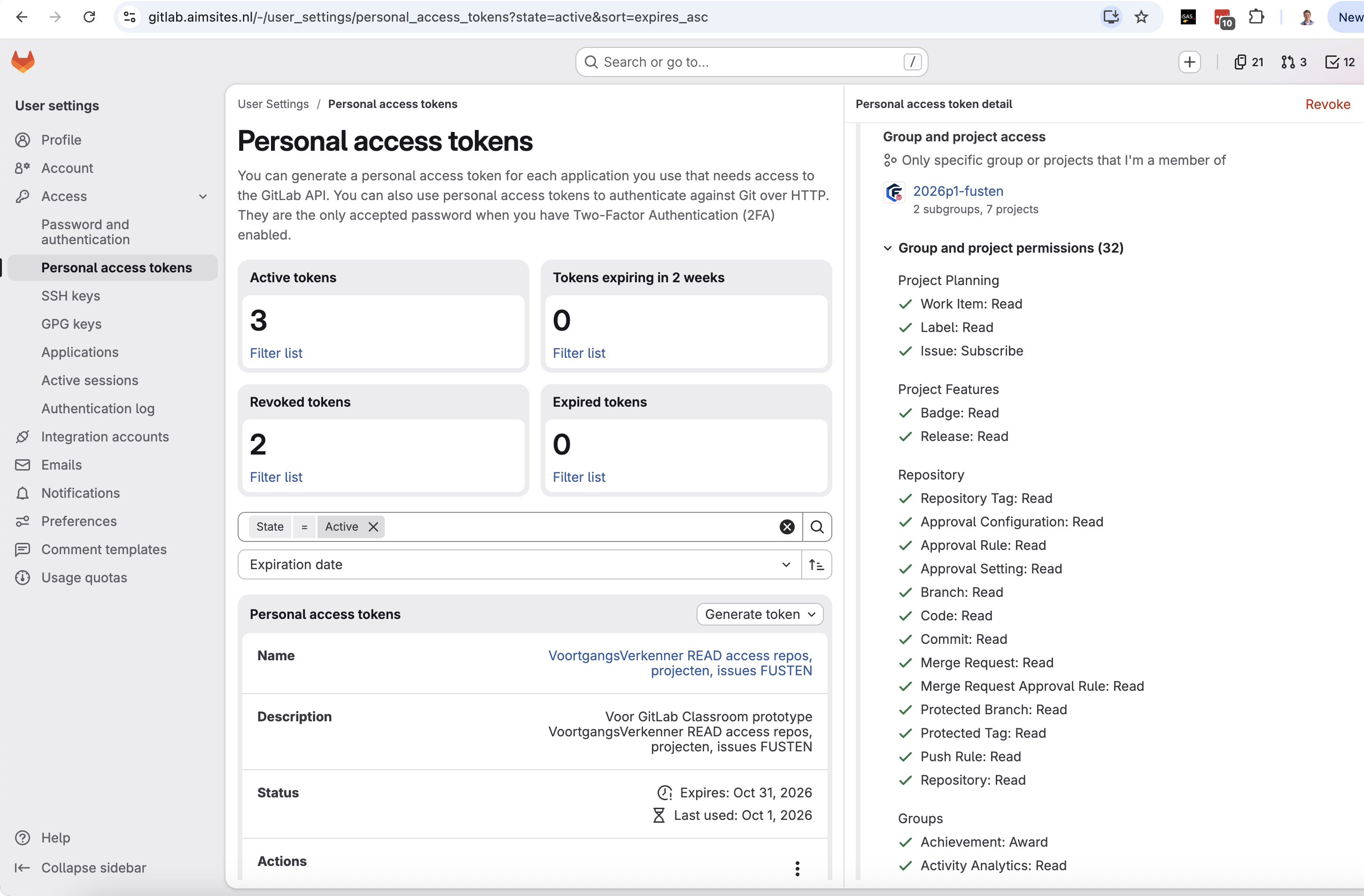
The screenshot shows a working token for FUSTEN. It grants more read permissions than the minimum listed above (need to know); the minimum is Work Item: Read, Label: Read, Merge Request: Read, Commit: Read and Group: Read. That minimum is derived from the API calls the dashboard makes and still has to be confirmed with a token that has only these permissions.
Showing the dashboard on the teacher page
Put the directive on its own line in the teacher page (teacherPage, default for-teachers.md):
{@bso-teacher-dashboard}
BSO then shows the teacher page with two tabs: Informatie (the rest of the page) and Voortgangsverkenner (the dashboard in an embedded frame, at full width). Without JavaScript both parts are shown one after the other. The directive only works on the teacher page and needs teacherDashboard in the configuration; without it the page shows a short note instead.
The Docusaurus preview (bso preview) shows the same tabs and the same working dashboard, so you can test it with your token before importing. A course with its own Docusaurus configuration needs a few additions; they are described in the Software Guidebook.
The dashboard stays a separate file (docenten/voortgangsverkenner.html) in the hidden instructor module. Hiding a topic in Brightspace does not necessarily block a direct URL for enrolled students; that is not a data leak, because the page contains no token or student data, only the group name and repository prefixes. Students cannot see other students' work without a token with read access to the course group.
The dashboard ships its own fonts (Atkinson Hyperlegible, SIL OFL 1.1) and libraries, so it makes no requests to third parties besides your GitLab server.
Using the dashboard
- Open Voortgangsverkenner in the hidden instructor module, paste the token and choose Gebruik.
- Choose the class and Haal status uit GitLab. The class overview shows a stoplight per student and per repository, with the share of green work items and a distribution bar.
- Use Toon repo's to show only the repositories of the current assignment level, for example only the
n3-repositories. Switch all on (Alles aan) to look back at earlier work. - Tick Alleen aandacht nodig to hide students, repositories and work items that are green or not yet due.
- Open a student, repository and work item in the tree on the left. The work item shows its linked commits and merge requests; each link opens the commit, the merge request changes or the work item in GitLab in a new tab.
- Adjust the thresholds under Instellingen stoplicht; colours update immediately. The defaults come from the configuration.
Fetched progress is cached in localStorage on this browser and device by default (#61). After validating your token, the dashboard restores data for this GitLab server, course, class and repository/week configuration. Current and future weeks are reused for 5 minutes, earlier weeks for 24 hours; without a week calendar the freshness limit is 5 minutes. Stale repositories are refreshed automatically when you enter the dashboard or switch classes. Ververs nu bypasses the freshness limit for the selected week (or the class without a calendar). Use Ververs deze student to update one student without fetching the whole class again. The displayed Laatst ververst timestamp shows the oldest repository fetch in the selected week.
Cached data includes student identifiers, work-item titles and status, counts of comments, and linked commit/MR metadata. The token is never cached. Data older than 7 days is removed when the dashboard opens and every minute while it is open; a closed page cannot run cleanup. Cache wissen removes all Voortgangsverkenner caches on this browser-origin and clears the displayed data. Vergeet token removes the token and displayed data from memory but does not erase the cache; use Cache wissen too on a shared device.
Privacy: this is local storage, not encryption or an access-control boundary. Other scripts on the same origin (including other course content on the same Brightspace host) can read it. Use a trusted browser profile/device and clear the cache before sharing it. The dashboard shows this warning beside the cache controls. If browser storage is blocked, full or corrupt, an explicit warning is shown; fetching from GitLab remains available with in-memory data.
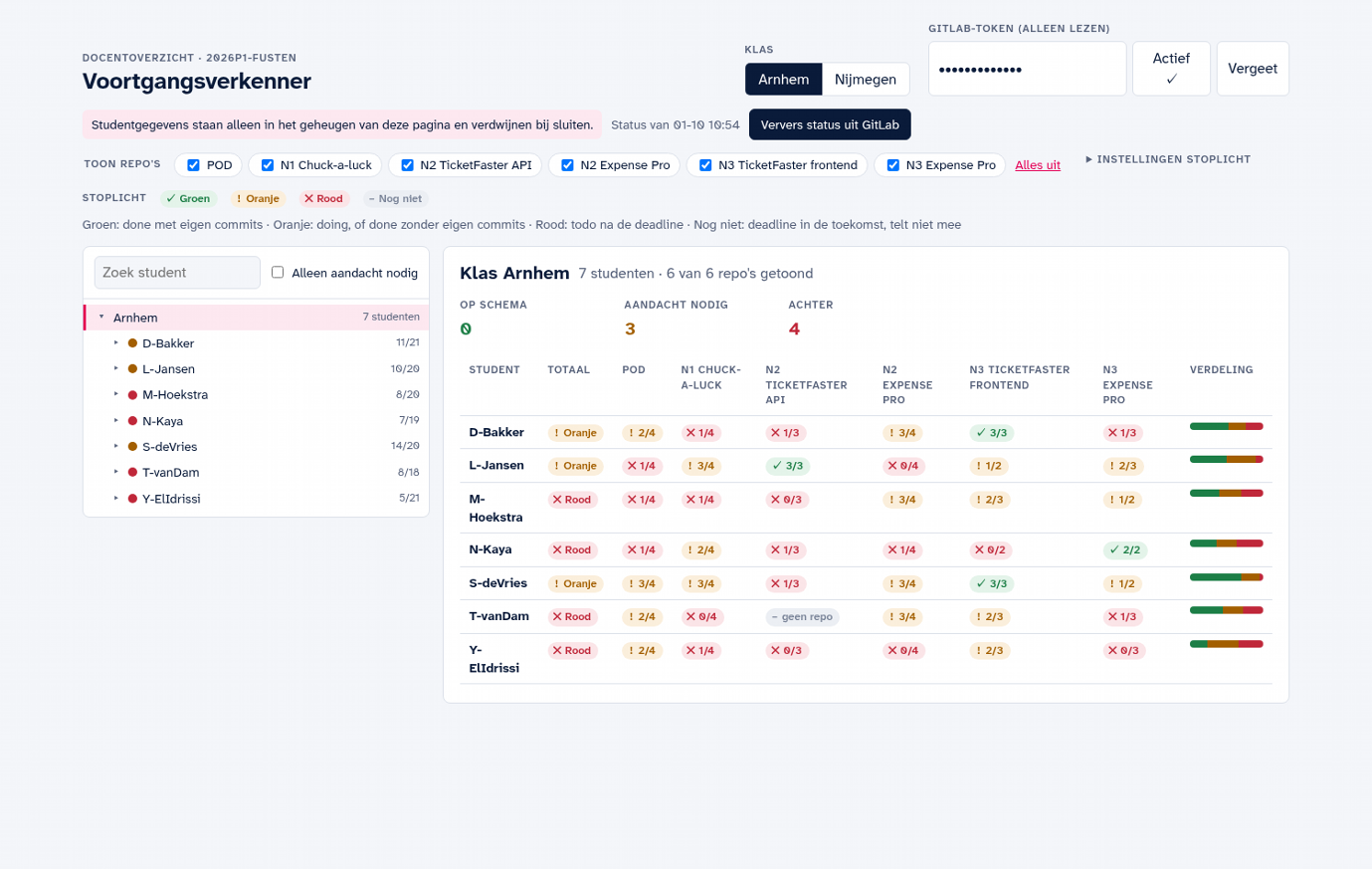
Progress calculation and stoplight rules
- Work item stoplight:
- Green (Done): Work item is closed or in a done state, with at least one commit by the student referencing the issue (
#<number>), and non-teacher changes (and comments, if enabled). - Orange (In Progress / Missing requirements): Work item is in progress/doing, or marked done without student commits or missing comments when required.
- Red (Todo): Work item is open or todo without progress.
- Gray (Empty): The student repository has no work items.
- Green (Done): Work item is closed or in a done state, with at least one commit by the student referencing the issue (
- Overall repo stoplight:
Calculated from the percentage of non-green work items compared to thresholds:
< orangeThresholdPercent(default 10%) $\to$ Green- $\ge orangeThresholdPercent$ and $\le redThresholdPercent$ (default 50%) $\to$ Orange
> redThresholdPercent$\to$ Red
- Dynamic overrides: Instructors can adjust the threshold sliders and toggle the comment requirement directly on the dashboard's Settings tab to dynamically recolor the student overview in real time.
5. Workflow: from Markdown to Brightspace
BSO converts quizzes to the QTI format (Question and Test Interoperability). QTI is an open standard from 1EdTech (formerly IMS Global) for exchanging test questions and assessments between systems (1EdTech, n.d.). Brightspace imports QTI files as assessments in the Tests/Quizzes tool, so questions do not have to be retyped by hand.

The source files remain authoritative:
- Lesson pages and student material live in the configured source directory (
sourcesDir). - BSO converts quiz files with the
quiz-prefix to QTI. - BSO can start the configured Docusaurus preview with
bso preview, so authors can check formatting, links, code blocks and diagrams before the slower Brightspace import round-trip. - BSO does not import teacher answer keys with the suffix
-antwoorden-docentas a student page. - Derived output lives in the build directory (
outputDir) and should not be edited by hand.
5.1 The two commands
Run the export from the root of your course project:
deno task build
deno task pack
build scans the source directories, converts Markdown to HTML, converts quiz Markdown to QTI and writes the intermediate output to the build directory. pack packages that directory into an .imscc archive in the same build directory, for example build/brightspace/cursus.v1.0.0.imscc: the name comes from name/courseName and the postfix from the course version in the config.
imsmanifest.xml records how the package was made: the LOM description holds the BSO version, course name and course version, for example Brightspacosaurus 0.18.0; course: Demo Course; course version: 0.10.0. Read it without Brightspace with unzip -p cursus.v1.0.0.imscc imsmanifest.xml. No build time is written by default, so repeated builds stay identical; set SOURCE_DATE_EPOCH (seconds since 1970) to add built: <ISO 8601 time>.
When BSO runs from a checkout, the build also writes the BSO user manual as docenten/user-manual.pdf: this manual followed by a chapter Features, built from the demo course's feature pages with their collapsible "how" parts expanded.
With --readers-only you generate only the reader and teacher PDFs without the rest of the build. With --skip-readers you do the opposite: BSO skips all PDF generation with pandoc (readers, instructor manual and user manual) and still copies pre-built PDFs. That makes local builds and tests much faster when the PDFs are not what you are checking.
For fast author feedback, use bso preview when docusaurusDir is configured. This starts the Docusaurus development server for the course repository, so most content and formatting issues can be caught locally before creating and importing a new .imscc package.
Slides in the preview and in Brightspace
Use slides.generateForPrefix to generate slides for every Markdown filename in sourcesDir that starts with a course-specific prefix. This is useful when all lesson overviews share a naming convention. slides.lessons remains available for per-lesson selection and overrides the prefix rule:
{
  "slides": {
    "generateForPrefix": "lesoverzicht",
    "lessons": {
      "lesoverzicht-6.3.md": {
        "generate": true,
        "decks": "instructor-material/week-6/les-3/slides-*.md"
      },
      "lesoverzicht-8.1.md": { "generate": false }
    },
    "disclaimer": "Preview: slides zijn nog in ontwikkeling",
    "theme": "shared/slides-theme.css",
    "logo": "shared/han-logo.png"
  }
}
The prefix is case-sensitive and matches the filename (not its parent directory). A matching file's explicit slides.lessons entry takes precedence; set { "generate": false } to opt it out, or a string/decks value to use manual slides instead. Lesson paths are relative to sourcesDir; slide globs are relative to the repository root. An options object can generate slides from one lesson, select manual decks, or do both. Generated and manual slides are available in the preview and are added to the .imscc.
Words used for slides. The same few words come back in the settings, the rules and the lint messages; this is what each one means.
| Word | Meaning |
|---|---|
| Lesson | The Markdown page itself, the reading view (lesoverzicht-8.4.md). |
| Generated deck | The slides that BSO makes from a lesson: slides.lessons.<lesson>.generate (or generateForPrefix). Also called the lesson deck. |
| Manual deck | A deck file you write yourself, with slides: true in its front matter (marp: true still works), selected with decks. |
| Include | {@include: [text](file.md)}: the text of a file is put at that place, one level deep, in the page and in the slides. It never starts a presentation. |
| Linked deck | An ordinary Markdown link in a lesson to a deck file. Its slides are inserted into the generated deck of the lesson at the link, and it is also a presentation of its own (rules L1-L10). |
| Nested page | A lesson page (not a deck) that the lesson links to and that nest selects. BSO generates its slides and puts them in the deck of the lesson, with sub-numbers, one level deep (rules N1-N13). |
| Appendix | The slides from a section Bijlagen/Appendices to the end of a generated deck, or the nested pages after a manual deck: numbered apart, Bijlage 5/127 (rules A1-A6). |
Planned, not built (see the issues): dual content (the paragraphs of a lesson become the speaker notes of its slide) and lesson as slides (present the lesson itself, with Alt+T).
Slides are optional: without a slides setting, BSO creates no slide decks, and regular Markdown remains unchanged. For manual decks, slides: true is the semantic BSO marker; marp: true remains supported when you want Marp's own tools to recognize the deck. Generated slides are a concise view of the lesson rather than a replacement for its reading view. BSO currently omits paragraphs and keeps lists, tables and images; sections with no such visual content do not get a slide. The longer-term authoring goal is to keep explanations available as reader-accessible speaker notes, support quotations, and warn about sections too dense for a slide. H3 subsections and section-introduction slides are also a design goal, not current behavior. See the slide authoring model for the distinction between current behavior and these goals.
With a manual deck (decks) instead of generate: true, nest works too: the pages that the lesson links to and that nest selects follow the slides of the manual deck, in the order of the links, as appendix slides (Bijlage 1/9, not counted in the numbering of the manual slides), also in the pptx of the deck. The links are read in the lesson page, not in the deck. A section Bijlagen, Appendices, Bijlage ... or Appendix ... starts the appendices of a generated deck: its slides and everything after it, nested pages included, are numbered apart (Bijlage 5/127) and do not count in the numbering of the other slides (3/12); the contents slide shows one line, Bijlagen (B1 t/m B127). Put the appendices last: bso lint warns about a section after them (slides-appendix-not-last), and appendix headings need no number. A section that needs more than one slide (a long list, table or code block) shows a counter after its heading, such as 2. Context (1/3); a section with one slide has none. BSO does not rewrite the titles of a manual deck, so a Slide 3 - prefix in a deck stays as written; remove it from the deck if you do not want it.
Generated decks use the lesson H1 as the title slide and create a slide for each H2. They retain lists, tables, images, code blocks (long code continues on the next slide) and PlantUML or Mermaid diagrams (each on its own slide, drawn through Kroki), omit paragraphs, split long lists and tables across slides, and show each Kernbegrippen/Core concepts definition on its own slide after the term list. A generated deck gets a contents slide with the ## headings that have slides after the title slide. A section that has only running text (no list, table, image, code or diagram) gets no slide and is not in the contents slide; bso lint warns about it (slides-section-without-content), because the author may not expect the section to be missing. Number the headings (## 1. Introduction) and keep to at most nine sections: bso lint warns (slides-unnumbered-headings, slides-too-many-sections) for a lesson that becomes slides otherwise. Leave Sources and Bronnen unnumbered; bso lint warns (numbered-sources) when they carry a number, in every lesson and reader, because APA puts the reference list after the text as an unnumbered section. Extra slides in a lesson. Write an ordinary Markdown link to a deck file (a file with slides: true) in the lesson, where the extra slides belong: [Extra slides: FizzBuzz step by step](../../slides/slides-fizzbuzz.md). On the lesson page the link starts that deck as its own presentation. In the slides of the lesson the deck's slides are inserted after the section with the link, and the deck's title is an entry in the contents slide. No decks setting is needed. Slides take a linked deck one level deep and once: bso lint warns (slides-nested-deck, slides-deck-linked-twice) about a deck that links another deck or a deck that is linked twice. In the cartridge the deck is a topic Slides: <lesson> — <deck> after the lesson's slides, and the link only points there when the course has slides configured. In Brightspace the lesson page has a line of links at the top: View as slides (the presentation of the lesson), one link for each deck the lesson links to, and Download PowerPoint for each editable pptx (slides.pptx). The same files are topics Slides: … after the lesson in the module. There is no Alt+P in Brightspace; that shortcut and the Slides button are the preview's way in. Nested pages. An overview page can show the slides of the pages it links to as nested sets, without copying any text. In slides.lessons, name the links that nest with nest, a glob or a list of globs relative to the folder of the lesson: "week-2/lesson-5-test-levels.md": { "generate": true, "nest": ["levels/level-*.md"] }. Not every link is a set of slides, so only the links that match nest; the others stay ordinary links. The slides of each matching page come after the section with the link, in the order of the links, as a divider slide with the title of the page and then its sections. Under a numbered section such as 2. The levels the pages are numbered 2.1, 2.2, ...; these numbers also appear in the contents slide. Nesting goes one level deep, and the pages stay available as their own slides when they are configured as lessons with slides. A matching link to a page that does not exist fails the build; bso lint warns about a pattern that matches no link (slides-nest-unused) and about more than nine nested pages under one section (slides-too-many-nested), because more than that is hard to take in. {@include: [text](path.md)} works in a lesson that is turned into slides and in a manual deck, one level deep: the included file is placed as it is (a deck's front matter is dropped) and an include inside it is not expanded, which rules out endless embedding between files that refer to each other. bso lint warns about the nested include (slides-nested-include). Put a --- slide separator in the including file, not in the included one. Manual decks use the semantic slides: true YAML frontmatter marker; existing marp: true decks remain supported for compatibility. BSO normalizes either marker for Marp. When generated and manual decks are combined, generated slides come first, followed by matching manual decks in filename order; the first manual deck's frontmatter supplies presentation-wide settings. A configured course theme overrides a deck's theme. The optional logo is embedded on slides marked <!-- _class: lead -->; when slides.logo is omitted, readerCoverLogo is reused if set. Start bso preview, open the lesson, then press Alt+P (macOS: Option+P) to show its presentation in the same tab. Nothing happens for lessons without slides, while typing in editable fields, or with Ctrl/Cmd+P. A small "Slides · Alt+P" button in the top right corner, below the navbar shows that the lesson has slides and opens them on click.
In the preview, Alt/Option+P (or the button) shows the current lesson's slides in the same tab. Use the browser's Back button to return to the lesson; BSO adds no exit key of its own (ADR 022). The slides page shows an Esc hint and an Esc button in the on-screen controller (it appears when you move the mouse); both only step back in the browser's history. In full screen the browser takes the first Esc.
Keep slide source files outside sourcesDir and readersDir, or in an underscore-prefixed folder such as _slides/, so they are not also treated as regular course pages by the existing preview/export scanners.
BSO renders static HTML with Marp CLI (downloaded through npm on first use and cached next to preview-static/). Local images are included; HTML comments become Marp presenter notes, not slide content. Marp theme CSS can style section, headings such as section h1/section h2, pagination with section::after, title slides with section.lead, and section header/section footer. BSO reserves section::before for the disclaimer banner and .bso-slide-logo for the generated title logo; themes should not use those selectors. The disclaimer appears on every slide; set it to "" to disable it. Restart the preview after changing slides or their configuration. Courses with their own Docusaurus app must add the slides integration.
bso build also adds the slides to the .imscc: each lesson with slides gets one extra topic Slides: <lesson title> right after the lesson in its module, a self-contained HTML file with the images embedded and the disclaimer on every slide. Every student who can see the module can open it, so keep the disclaimer for slides that are not final. The presenter notes (HTML comments in the deck) are removed from these slides, because Marp writes them into the HTML where students could read them; set "notes": true in slides to keep them anyway. The preview always shows them. Rendering needs npm and takes a while; skip it with bso build --skip-slides. A course without slides in its configuration needs neither. With "pptx": true in slides (or pptx: true in one deck's front matter), each manual deck also gets an editable .pptx, linked from the slides page and packed into the .imscc; pptx: false in a deck opts it out. A deck generated from a lesson gets one too with pptx: true on the lesson in slides.lessons (nested pages and appendices included). Check in your Brightspace sandbox that the topic opens and navigates before you rely on it: Marp's HTML contains a script.
In the preview, hidden is not secured: anyone who knows the URL can open the slides. Keep the preview local; reconsider access control before deploying it online.
5.2 Brightspace Import behavior: additive with overwrite option
Brightspace import is additive by default for content modules and quizzes: a new import adds items but does not automatically delete or overwrite existing modules or quizzes. Duplicate imports lead to duplicate items.
The import wizard does offer the option "Overwrite existing files". This option applies to files in Manage Files (images, PDFs, HTML files) — not to content modules or quizzes as a whole. Specifically:
- Lesson pages (content topics): are added as a new item on re-import, not overwritten. Manual deletion before re-import is required.
- Files (images, PDFs): are overwritten if the option is checked and the path matches.
- Quizzes: are added as a new assessment, not overwritten.
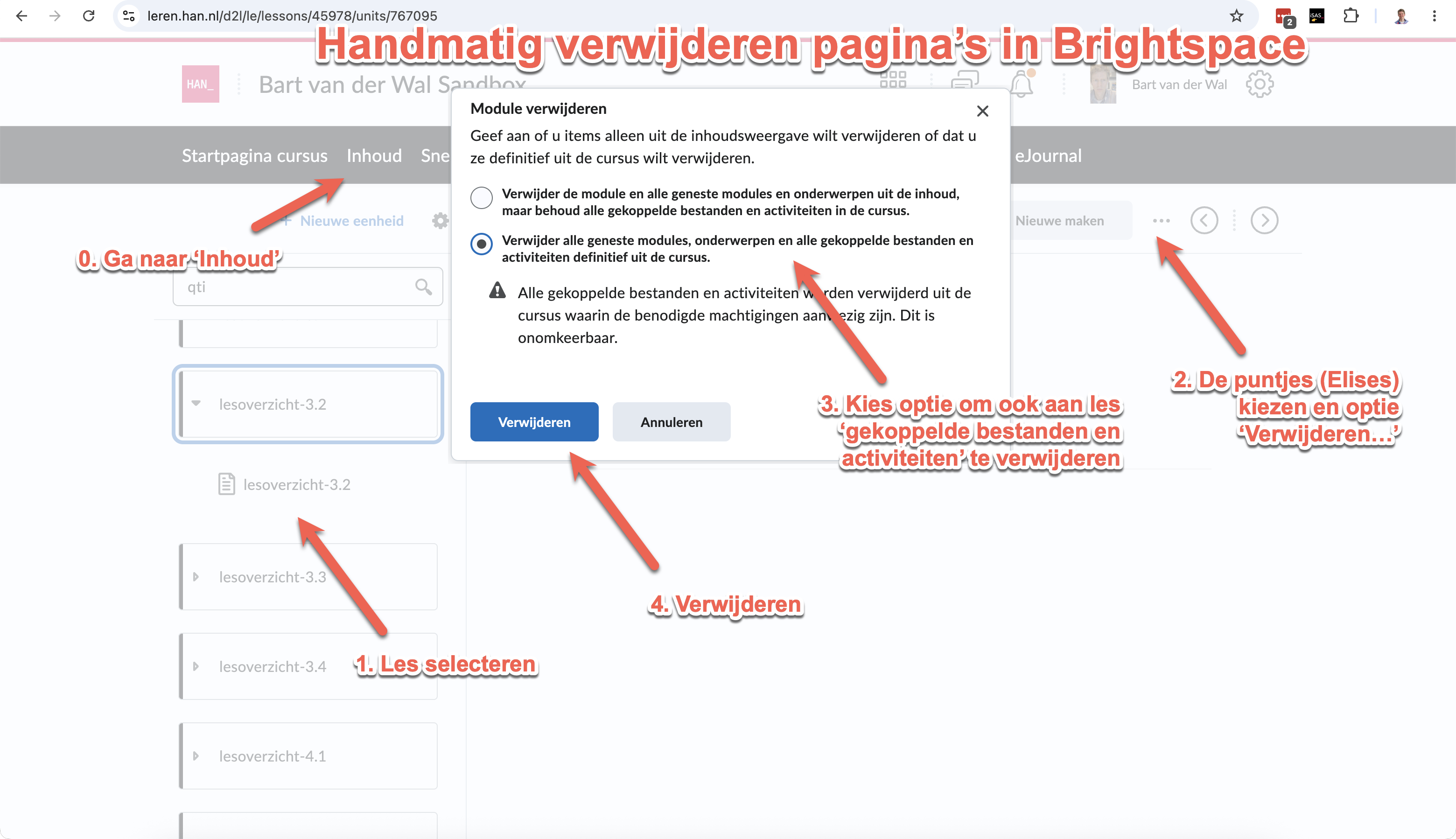
Figure 4: Manually removing a page in Brightspace.
Figure 4 shows how you manually remove a page.
- Step 0: Navigate to the module in Content.
- Step 1: Click the ellipsis (⋮) next to the topic.
- Step 2: Choose Remove.
- Step 3: Confirm with Yes, remove also contents if you also want to remove the underlying files.
- Step 4: Confirm with Remove.
Recommended workflow: check "Overwrite existing files", but manually remove old content modules before re-import if the structure has changed. For bulk deletion see §11.
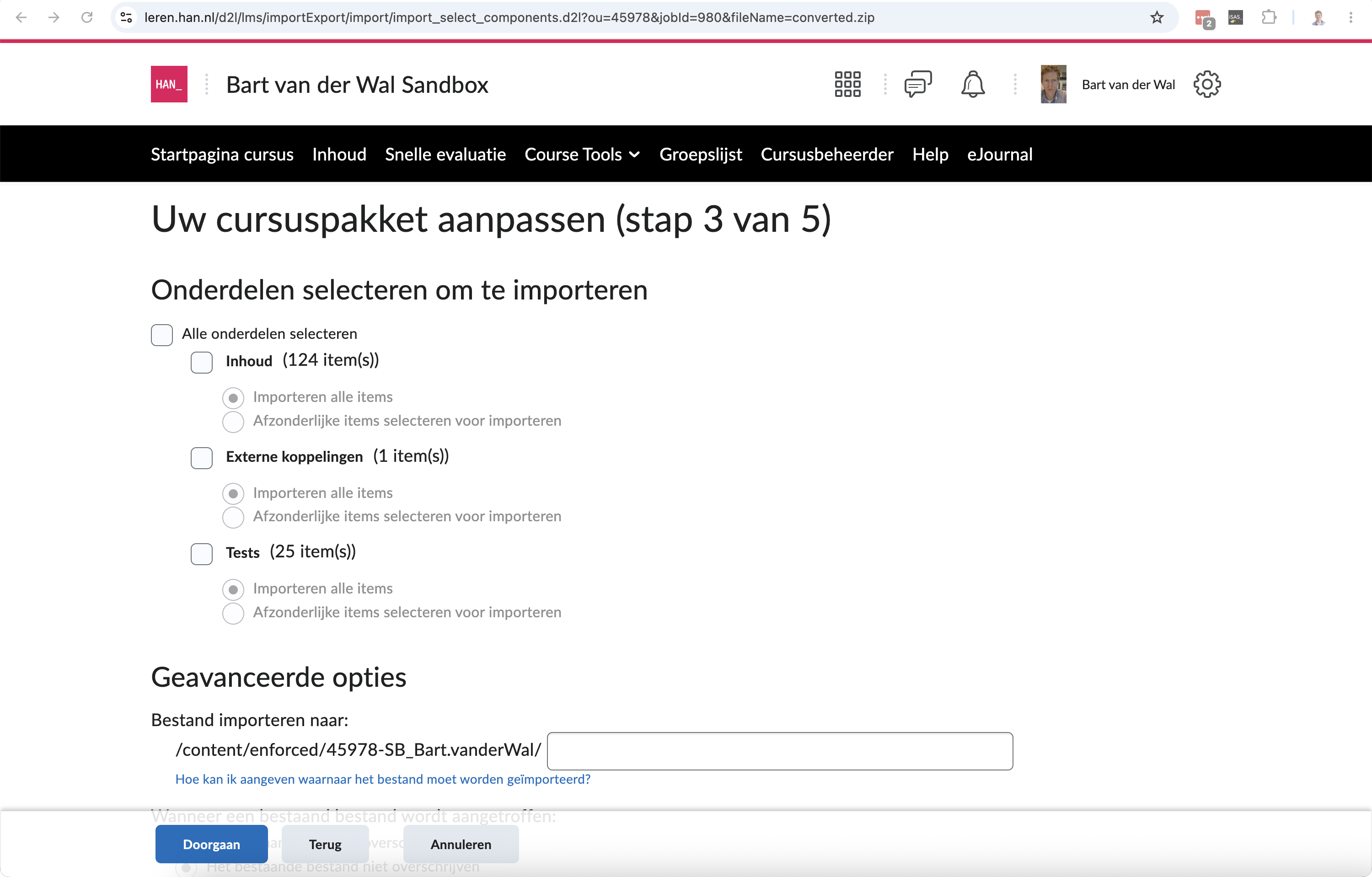
Figure 5: Brightspace import — selecting components.
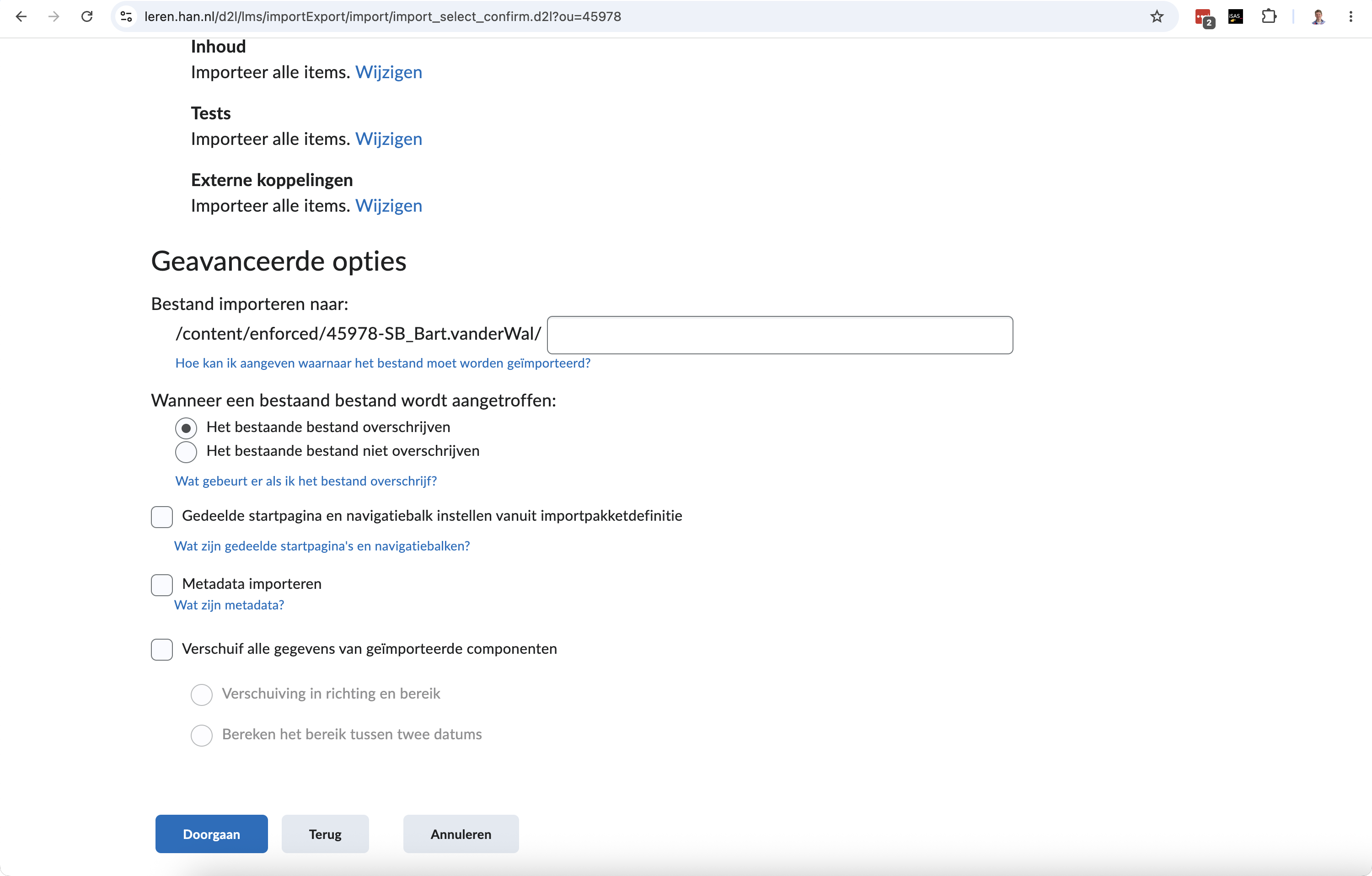
Figure 6: Option — overwrite existing files.
After import, check at minimum:
- Do the content topics appear in the expected order?
- Do lesson pages show headings, lists, tables, code blocks and images correctly?
- Are quizzes in the Tests/Quizzes tool and do they open without an error?
- Are teacher answer keys absent from the student-visible content?
- Have duplicate modules or old versions been manually removed before you import again?
5.3 Import options in Brightspace
When importing a course package, Brightspace shows two optional checkboxes:
5.3.1 Import metadata — Yes, check it
Metadata describe course objects (modules, topics) in a structured way — think of language, keywords and catalog information. BSO generates metadata in the manifest (title, language nl-NL). Including these ensures that Brightspace correctly adopts the titles and structure (D2L, n.d.-g).
5.3.2 Shared home pages and navigation bars — No, do not check it
This option links a shared home page or navigation bar defined elsewhere. The BSO package contains no references to shared home pages or navbars — it uses the default course navigation. Leaving this box unchecked prevents Brightspace from accidentally activating the wrong navbar.
5.4 Recommended import procedure
- Go to Course tools → Import/Export/Copy Components.
- Choose Import Components → from a course package.
- Upload the
.imsccpackage. - Check Metadata ✓.
- Leave Shared home pages and navigation bars unchecked ✗.
- Click Import.
- Wait until the import is complete (may take several minutes for large packages).
Preferably choose a clean sandbox course for tests.
5.5 PlantUML and Mermaid diagrams in lesson pages
BSO renders PlantUML and Mermaid fenced code blocks in lesson Markdown during build. The renderer uses remark-kroki-a11y and a Kroki-compatible HTTP service. By default BSO uses the public https://kroki.io endpoint and embeds rendered SVG as a base64 image in the generated Brightspace HTML.
Example:
```plantuml
@startuml
class Student
class Course
Student --> Course : enrolls in
@enduml
```
Optional configuration:
{
  "diagrams": {
    "krokiUrl": "https://kroki.io",
    "output": "img-html-base64",
    "failOnError": true
  }
}
For CI, privacy-sensitive material, or offline work you can point diagrams.krokiUrl to a self-hosted Kroki service. A local Docker Kroki setup renders PlantUML directly; Mermaid requires the yuzutech/kroki-mermaid companion container. The public https://kroki.io service includes that companion.
Brightspace lesson pages should not depend on custom JavaScript for core accessibility behavior. Depending on Brightspace configuration, script-capable content files can be sandboxed in a secure iframe, and browser/security restrictions can also affect embedded scripts. BSO therefore adapts the generated diagram output to native HTML controls: source and natural-language descriptions are exposed through <details>/<summary>, and descriptions are associated with the rendered image where available. This improves screen-reader and no-JavaScript access, but it is not a formal WCAG conformance claim. Before publishing an important course, check representative pages manually in Brightspace with the assistive technologies your students use.
diagrams.failOnError controls the build policy. With the default true, invalid diagram metadata, invalid source, or an unreachable Kroki endpoint fails the build. With false, BSO logs a warning, keeps the original fenced code block in the generated page, and continues.
Readers follow the same two settings. The diagrams in a reader PDF are rendered by the pandoc filter assets/diagram-filter.lua through diagrams.krokiUrl; a KROKI_URL environment variable set by hand still wins. A diagram that Kroki cannot render stops the PDF with the diagram type and the category (kroki-unreachable or invalid-source); with failOnError: false the source block stays in the PDF and the build prints a warning with the same category, so you see it before you open the PDF.
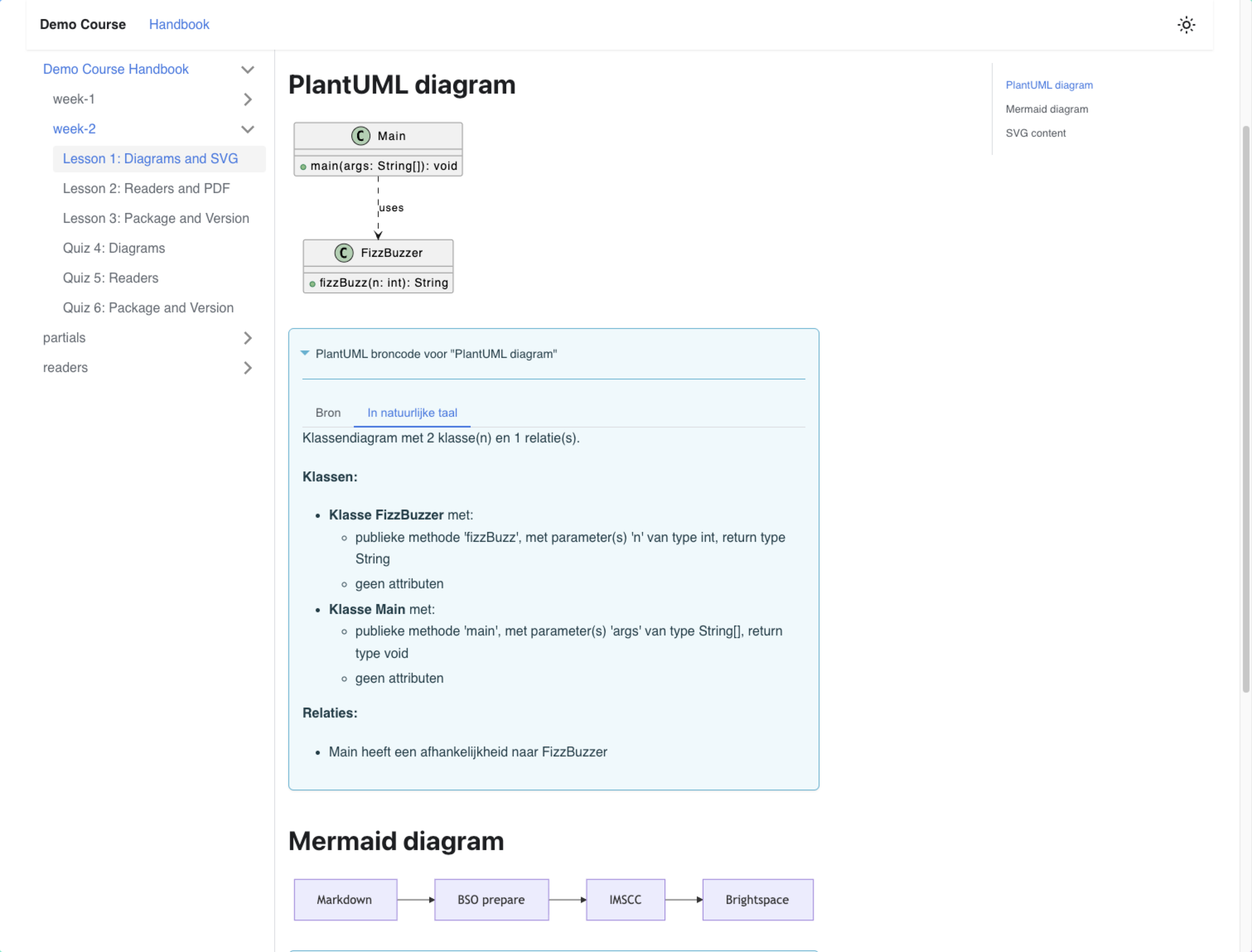
Figure 7: Diagram in the Docusaurus preview with source and natural-language description tabs.
Figure 7 shows the Docusaurus preview. In Brightspace the same content appears as native <details> disclosures.
6. Import/export: IMS Common Cartridge
Brightspace can import and export course components via Common Cartridge. D2L describes Common Cartridge as an open standard for content, assessments and digital content, and mentions import from a course package as a supported route (D2L, n.d.-g).
Figure 8: Contents of an unpacked .imscc package.
The manifest describes the resources; the content directories contain the HTML files and images that Brightspace imports.
BSO generates an .imscc package conforming to IMS Common Cartridge 1.3 from Markdown source files. Brightspace supports multiple Common Cartridge versions; for version 1.1 D2L explicitly mentions the .imscc extension as a recognizable package extension (D2L, n.d.-h).
6.1 Native Brightspace package (experimental)
A Common Cartridge import drops the text and the images of a main menu item (the module description). Brightspace's own export (a .zip with D2L XML) keeps them: there the HTML of a module sits in the description attribute of the module item. bso pack --format brightspace builds such a package next to the .imscc: <name>.v<version>.d2l.zip.
The lead page of each module (index.md, weekintro-1.md, ...; see 8.2) becomes the module description, with its images; the other lessons and the reader PDFs are topics, and content/ and readers/ are the course files. Quizzes (experimental): each quiz becomes a quiz_d2l_<n>.xml file with a link topic in its module, and the images of the quizzes (diagrams too) go to the root of the package, as Brightspace does itself. BSO writes the same QTI as for the .imscc with the extra attributes Brightspace expects; whether Brightspace accepts that, and shows the diagrams, is not yet verified with an import. Until it is, import the quizzes from the .imscc as well and compare.
The format is reverse-engineered from exports, not documented by D2L, so treat the package as a test: import it into a sandbox course first and check the module descriptions on the main menu items (issue #21).
6.2 The publication folder
outputDir is the temporary build output and does not belong in version control. Some files are meant to be kept: the .imscc that was imported, and the editable .pptx files of the slides, for teachers who want to download them without a local build. Set publishDir to a folder of its own for those:
{ "publishDir": "publicaties" }
bso pack then also copies the package it built into publicaties/brightspace/, removes older versions of that package from that folder, and copies the pptx files into publicaties/slides/ (with the folder structure of the lessons). It prints what it copied and removed. Only <name>.v<version>.imscc (or .d2l.zip) files of this course with another version are removed; nothing else in the folder is touched. bso lint warns (publish-version-mismatch) when the folder holds a package of another version than the course version.
publishDir has no default on purpose: BSO writes into your repository and removes older versions of the package there, so you ask for it by naming the folder. The recommended name is publicaties (or publications in an English course), so every course has the same one. publishDir must be a folder inside the repository, not the repository itself, and not inside or around outputDir. Publishing is a deliberate step, so it is a different folder than the build output.
7. Quizzes and QTI
The Source Scanner classifies files with the quiz- prefix as quiz files. BSO supports the Quizzosaurus / QuizDown syntax: place a quiz fenced block in the file. Each question starts with ?, an optional hint with !, and its response type is inferred from its markers:
- ( )/- (x)for single-choice options; if no(x)is marked, the first option is used.- [ ]/- [x]for multiple-response options; at least one[x]is required.= answer / accepted variant ~20for an auto-graded short answer with accepted variants and an optional maximum input length.
Question and option order is kept deterministic; numbered options can reserve their display position. Mixing round and square option markers, or combining options with short-answer syntax, is invalid. See the QuizDown syntax for all markers, the heading form and the lint rules.
For each quiz Markdown file, BSO generates one valid QTI 1.2 XML file conforming to the IMS CC QTI profile (cc.exam.v0p1). The QTI files appear in Brightspace both in the Quizzes tool and in the content navigation.
Generated quizzes get a maximum attempt count through QTI metadata. Configure it with quiz.maxAttempts in brightspacosaurus.config.json; when omitted, BSO uses 0, which means unlimited attempts. The value must be a non-negative integer. In the IMS Common Cartridge output, BSO writes Brightspace's cc_maxattempts metadata field; 0 is exported as unlimited, matching Brightspace's own Common Cartridge export.
The earlier H1/H2 format with lettered options and a Correct answer: X answer key remains accepted for existing course files. New quizzes should use the linked QuizDown syntax; it keeps the answer key with each question instead of relying on a separate teacher-answer file. BSO exports single-choice as cc.multiple_choice.v0p1, multi-select as cc.multiple_response.v0p1, and auto-graded short answers as cc.fib.v0p1. Long-form essay and matching questions are not part of the currently documented QuizDown syntax. Verify QTI import and scoring in a Brightspace sandbox.
The legacy format also supports a shared-context assignment with independently answered subquestions. English headings are the generic defaults:
## Assignment 27

The shared case, image or code block goes here.

### Question 27a (2 pt)

Which answer is correct?
- A. The first option
- B. The second option
Correct answer: A

### Question 27b (3 pt)

What is the short answer?
Correct answer: accepted answer / accepted variant
The assignment context is written once and shown before its subquestions in the Docusaurus preview and in a Brightspace quiz section. Each part can use its own question type and optional positive point value; a part without an explicit value is worth 1 point. Brightspace weights the part by that value, and the assignment score is the sum of its parts. Relative Markdown images in the shared context are included in the cartridge. A ## Question N outside an assignment remains a standalone question. Dutch legacy headings (## Opdracht N, ### Deelvraag 27a) and existing Vraag headings remain accepted.
Set quiz.locale to "nl" to derive the defaults Opdracht, Vraag and Deelvraag; quiz.subquestionPrefix sets the prefix of assignment subquestions. A client can instead set quiz.assignmentPrefix and/or quiz.questionPrefix to its own terms; an explicit prefix takes precedence over the locale. These settings are shared by QTI export, Docusaurus preview and course lint. QuizDown's fenced quiz syntax is unchanged. A companion -antwoorden-docent.md can mirror the assignment/subquestion headings; lint compares its answer letters by part label. Lint reports assignments without parts, nonconsecutive part letters, malformed heading syntax and assignment/question headings at the wrong level. A subquestion heading outside an assignment is reported as an error. Verify section text, image display, and scoring in a Brightspace sandbox before using the import in a graded quiz.
For Dutch quiz labels, merge this fragment into your existing course configuration:
{
  "quiz": {
    "locale": "nl"
  }
}
In QuizDown, an assignment starts with @ title. The Markdown up to the first ? is the shared context (text, code, images); every ? after it is a sub-question with its own type, so single choice, multiple response and short answers can be mixed. Points go at the end of the ? line as (2 pt) or (2); other spellings such as (2 punten) are errors. A ? before the first @ is a standalone question. Sub-questions are labelled 1a, 1b, ... per assignment. Indented fenced code under an option, also after a blank line, belongs to that option.
```quiz
@ Testing FizzBuzz
Given this class:

   ...code...

? Which test is useful? (2 pt)
- (x) A test that asserts `"Fizz"` for 9
- ( ) A test that only checks for null

? What does `fizzbuzzer(5)` return? (1)
= Buzz ~10
```
QuizDown also has a heading form, so a question can have a name instead of a number. A heading that starts with ? is a question, a heading that starts with @ is an assignment, and a plain heading is a section. The heading text is the name of the question; the text under it is the prompt, and without text under the heading the name is also the prompt. The name is the title in the preview and the item title in QTI; a name that is only a number is a lint warning. Sub-questions are ? headings one level below their @ heading. A question ends at the next heading of the same or a higher level; an assignment ends at a heading of its own or a higher level. An explanation is a heading named Toelichting or Explanation, exactly one level below the question or sub-question; its Markdown is shown after the answer (a second QTI item feedback next to the hint, and a block in the preview). Verify how Brightspace displays it in a sandbox. A file uses either a fenced quiz block or heading form. Options may carry the label a. or b), which must match their position.
## ? Which UML diagram belongs to the Decorator pattern?

- (x) a. A wrapper that adds behaviour around a component
- ( ) b. A class that has exactly one instance

## @ Testing FizzBuzz

Shared context, with code if needed.

### ? Which test is useful? (2 pt)

- (x) A test for input 15
- ( ) A test for null
bso lint checks QuizDown with the standalone QuizDown linter (src/quizdown-lint.ts): assignments without sub-questions, invalid point spellings, unindented content after an option, a legacy ## Vraag heading in a file with a QuizDown block (errors), and an assignment without shared context (warning). The heading form adds quizdown-invalid-subheading-in-question, quizdown-nested-question, quizdown-heading-title and quizdown-option-label (errors). Line numbers refer to the file. See QuizDown syntax and ADR 020.
Set quiz.shuffleAnswers to true in brightspacosaurus.config.json to randomize
answer order per attempt. Default false preserves source order. BSO writes
<render_choice shuffle="Yes"> or shuffle="No", keeping stable option identifiers
and the correct scoring reference. See the Common Cartridge specification.
The Docusaurus demo uses the same setting and parser for interactive practice;
answers are shuffled on page entry/new attempt, and stay in place while answering.
Choosing New attempt opens a confirmation dialog before clearing answers,
score and feedback. Cancelling keeps the current attempt unchanged.
The buttons (Check answers / Controleer antwoorden, New attempt / Nieuwe poging),
the messages, the score text and this confirmation follow quiz.locale.
Preview scores are local feedback, not stored grades; Brightspace enforces native
assessment rules and attempt limits. Restart preview after changing configuration.
Verify native randomization and correct scoring after importing into Brightspace.
To enable shuffling with unlimited attempts, merge these quiz settings into your existing course configuration:
{
  "quiz": {
    "maxAttempts": 0,
    "shuffleAnswers": true
  }
}
7.1 Images in quizzes
A quiz can be given a header image via the quiz settings in Brightspace (manually). In the QTI format that BSO generates, you can embed images in question texts via HTML img tags. A quiz banner as a whole is a Brightspace UI setting, not part of QTI.
7.2 Diagrams in questions
A PlantUML or Mermaid block works in a question, an answer option, a hint, an explanation and in the shared text of an assignment, with the same Kroki rendering as lesson pages (section 5.5):
````quiz
? Which diagram shows that a `Course` is a kind of `Subject`?

- (x) This diagram:
  ```plantuml
  @startuml
  Course --|> Subject
  @enduml
  ```
- ( ) That diagram:
  ```plantuml
  @startuml
  Subject --|> Course
  @enduml
  ```
````
bso build renders every diagram from its source, so the picture can never get out of step with the code. The QTI export stores each diagram as an SVG file in quiz/week-N/assets/, and bso preview shows the same quiz with the same diagrams. Below the image, native <details> blocks hold the diagram source and a natural-language description generated from it, for screen-reader users and as a text alternative.
The image gets the question as its accessible title (Question 3, Question 4, answer A; Vraag 3 with quiz.locale nl). Give a fence its own title with imgTitle:
```plantuml imgTitle="Student enrolls in a course"
diagrams.failOnError and diagrams.krokiUrl apply as for lessons: with the default true, an invalid diagram or an unreachable Kroki endpoint fails the build; with false BSO warns and keeps the fenced block. bso lint reports diagram authoring errors in quizzes without contacting Kroki.
Use the QuizDown form (a quiz block) for diagrams in answer options.
The SVG files are listed in the manifest as one hidden web content resource per quiz, because Brightspace imports only files of that kind, and the links in the QTI are relative to the package root, because Brightspace resolves them from the course root. An import into a sandbox course showed the diagrams in the answer options of the demo quiz 2.1 and working <details> blocks, in the instructor preview of the quiz. Brightspace shows the two <details> blocks one below the other, not as the tabs of the preview. A variant with the SVG embedded as a data: URI showed no pictures at all and is not used. Not verified: the student view, and the SVG files in Manage Files. Check a graded quiz in a sandbox course after each Brightspace update.
7.3 Teacher and student variants
Practical convention for filenames:
- Lesson pages are imported as content topics.
- Files with the
quiz-prefix are converted to QTI and imported as an assessment. - Files with the suffix
-antwoorden-docentare not imported as a student page or assessment.
Brightspace itself already has a separate tool/navigation for tests and quizzes. BSO therefore converts quiz Markdown to QTI assessments and does not build an extra content module for tests.
7.4 Code in questions and answer options
Fenced code blocks and inline code work in a question, an answer option, a hint and an explanation. A QTI question has no stylesheet, so BSO writes the styling into the question itself (inline style). Code blocks are syntax highlighted at build time with Prism, on a dark block with a border, in the same Palenight colors as the Docusaurus preview. Inline code gets the grey background and border of lesson pages. A language Prism does not know, or a block without a language, stays plain code.
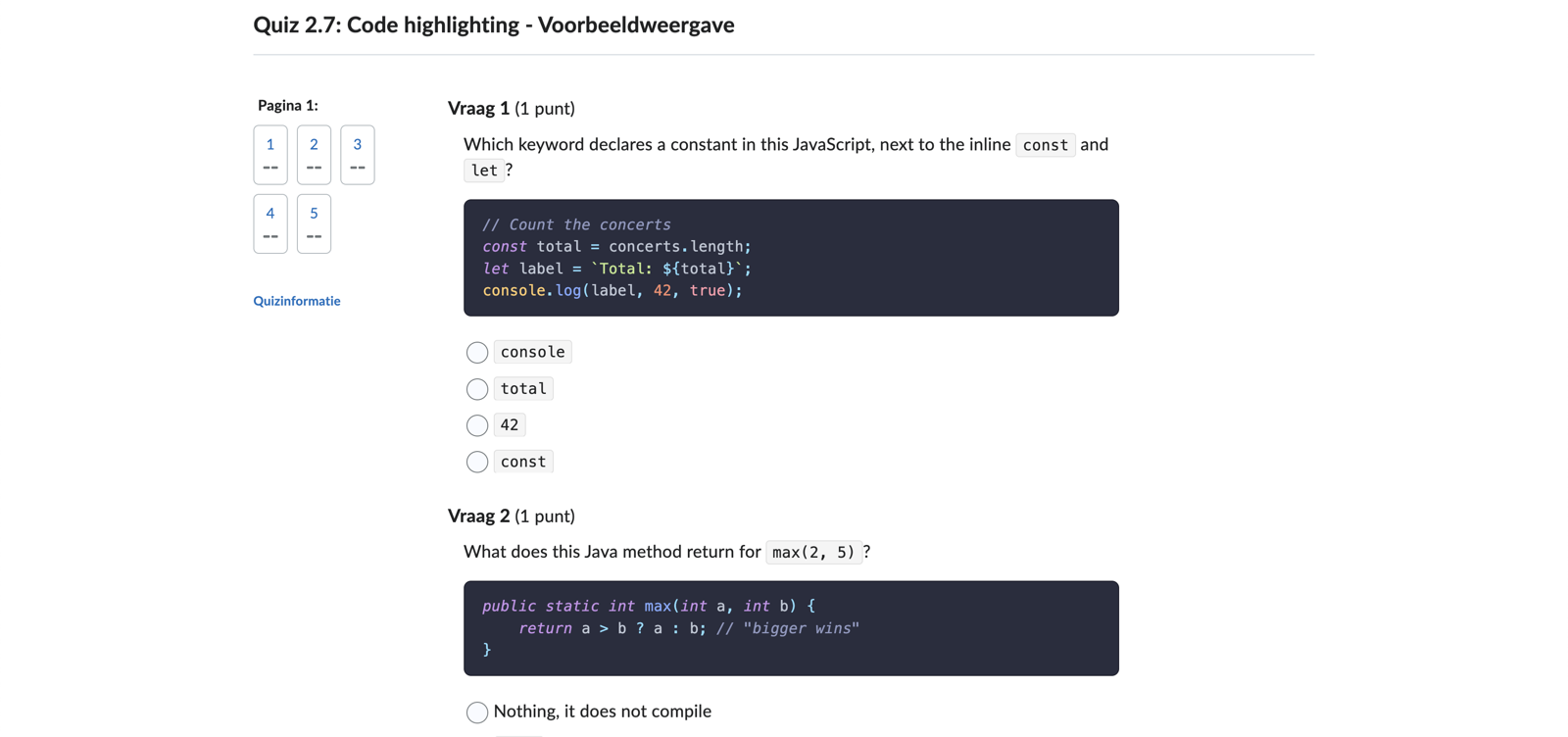
Figure 9: Code in quiz questions and answer options in the Brightspace preview (demo quiz 2.7).
Look at the dark blocks in the questions: keywords, strings, numbers and comments each have their own color. The inline code in the question text and in the answer options has a grey background, so it stands out from the prose. The demo course shows this with JavaScript, Java, YAML and XML in quiz-7-code-highlighting.md.
8. Readers: reference material as PDF
Readers (for example memory models, class diagrams, PlantUML or Git explanations) are reference material that is referenced from multiple lessons. They live in the configured readers source directory (readersDir).
The Source Scanner classifies files with the reader- prefix as reader files. BSO converts them to PDF via pandoc with xelatex or lualatex as the PDF engine. Some properties:
- Reader PDFs use the DejaVu fonts when installed (on macOS:
brew install --cask font-dejavu). Without DejaVu, BSO falls back to the TeX Gyre fonts that ship with TeX Live, and the check mark✔to Menlo, Noto Sans Symbols2 or Symbola if present. If none has that glyph, the PDF still builds, with a LaTeX warning and a missing check mark. - If pandoc is not available, BSO logs a warning and skips the reader PDF conversion without aborting the build.
- Pandoc's
--resource-pathis set to the directory of the source file, so that relative image references are resolved correctly. - If a reader conversion fails, BSO reports the file and continues with the remaining readers, but returns a non-zero exit code afterwards.
- Generated reader PDFs get a mandatory separate cover page before the table of contents. The cover title comes from Markdown frontmatter
title, otherwise from the first H1, otherwise from the file name.author/auteurandversion/versiefrontmatter are used when present, otherwise the course name and version. - The cover shows when the reader first appeared and when it was last changed, each on its own line, for example
Oorspronkelijke datum: 2026-05-15andLaatste wijziging: 2026-10-01. The original date comes fromdate/datumin the frontmatter. The last change comes from Git: the last commit that touched the reader file. Without Git, BSO usesupdated/bijgewerktfrom the frontmatter. With only one date, or two equal dates, the cover shows one date line. Labels followdiagrams.locale(Dutch or English). BSO never inserts the current date, so repeated builds stay reproducible. - Every chapter starts on a new page. The chapter level is the highest heading level in the reader; when that level occurs only once, as a title above
##chapters, the next level counts. Headings in code blocks are ignored, and a manual\clearpagebefore a chapter gives no blank page, so you can remove those from your readers. Turn it off with"readerChapterNewPage": false. - Write section numbers directly in reader headings, for example
## 1. Inleidingand### 1.1 Doel. PDF generation does not add another number, so the authored number is shown once in both the Docusaurus preview and the PDF.bso lintchecks numbering; addlintHeadingNumbers: falseto frontmatter to opt out. - In CI with a shallow clone (for example GitLab's
GIT_DEPTH) the last commit that touched a file may be missing, or replaced by a later one. BSO detects a shallow clone and then ignores the Git date, falling back toupdated. For the real date in CI, fetch the full history (GIT_DEPTH: 0) for the job that builds the readers. - Add a cover image with
coverImagein the frontmatter, relative to the reader file, for examplecoverImage: img/git-branches.png. The image appears between author and date, scaled to at most 80% of the page width and 45% of its height. Use PNG or JPG, and a path without spaces or LaTeX special characters (%,#,{,}). If the file is missing or the path is unusable, BSO prints a warning and builds the cover without image.coverAltmay hold a description for editors; the PDF does not use it yet. - Add a logo to every reader cover page with
readerCoverLogoinbrightspacosaurus.config.json, relative to the repository root, for example"readerCoverLogo": "shared/han-logo.png". The logo appears at the bottom of the cover, above the date, at most 4 cm wide and 3 cm high. The same path rules and warnings apply as forcoverImage.
To disable chapter page breaks and add a cover logo, merge this fragment into the existing course configuration:
{
  "readerChapterNewPage": false,
  "readerCoverLogo": "shared/han-logo.png"
}
BSO includes reader PDFs in the IMSCC package as webcontent resources. By default they get their own "Readers" module in the menu; see 8.2 to put them in another module.
8.1 Mapping to Brightspace
In Brightspace you can offer the reader PDFs as follows:
- Upload the reader PDFs to Manage Files in the course.
- Link to the PDF from relevant lesson pages via a relative URL.
- Optionally: create a top-level module "Reference material" with links to the PDFs.
Figure 10: Brightspace Manage Files — reader PDFs are linked from lesson pages.
8.2 Menu module and order
The Brightspace menu follows the folders in sourcesDir: each first-level folder becomes a module, sorted by name. Name these folders for the course structure that makes sense to students—weeks, topics, themes or units all work. For a topic-based course, for example:
lessons/
  databases/
    index.md
    relational-model.md
    sql-basics.md
  web-development/
    index.md
    html.md
    css.md
Put a non-empty H1 in each module's lead page; that heading becomes the module name in Brightspace and in the preview. BSO takes the file with exactly one of these names as the lead page: index.md, intro.md, overview.md, weekintro.md or weekindex.md, the last two with an optional week number (weekintro-1.md). The whole file name counts, not a prefix: introduction.md is an ordinary page. A title: in YAML front matter does not set the module name—BSO uses the H1, and bso lint reports an index without one. Without a lead page, the folder name is used.
The preview derives its sidebar from the same course folders and ordering as the Brightspace menu. You do not need to maintain Docusaurus sidebars.js or _category_.json files in the course content. BSO ignores _category_.json; bso lint warns if one remains in sourcesDir.
Within a module BSO orders the pages in three layers; the most specific wins, and none is required:
-
the teacher page (
teacherPage), always first in its module, and the folder's lead page after it; -
the overview: an ordered list of links in an
Overviewsection (orOverzicht; setmenu.overviewHeadingsto use your own name, such asWeekoverzicht) of the lead page. The listed files are the menu, in list order, lessons and quizzes and slide decks mixed. This is the recommended way:## Overview- [Lesson 1.1](lesson-1.md)- [Quiz 1.1](quiz-1.md)- [Lesson 1.2](lesson-2.md) -
sidebar_positionin the front matter of a lesson, a quiz or a slide deck (one shared system), ascending; -
the rest in the natural order of the file name (
lesson-2beforelesson-10).
BSO does not read an order from numbers in a title or a file name. A module that has an overview publishes only the files it lists: a file that exists but is not listed is not in the menu and not in the package, and bso build says which files it left out. The same goes for a file with draft: true in its front matter (not ready yet); mark a file you leave out on purpose that way, because bso lint warns about a file that is neither listed nor a draft (menu-unlisted), and about a listed file that is a draft (menu-draft-listed). Other findings: a link to a file that does not exist or listed twice (errors, menu-link-missing, menu-link-twice), a listed file that also has a sidebar_position (menu-position-listed; the list wins), the same sidebar_position twice in a folder (menu-position-duplicate) and a folder where only some files have one (menu-position-partial). A link to a file that is left out of the menu is a dead link for students and is reported as menu-link-excluded.
Changed in 0.33.0: a course that relied on the old derivation, which read lesson codes from titles and file names and put a quiz after the lesson with its code, now stops the build with an error that shows the old and the new order. Choose one of the three ways to say what you mean: an overview, sidebar_position, or file names whose natural order is the order you want.
Reader PDFs get their own module by default. To put them in a content module instead, after its pages, set readersModule to that folder's name:
"readersModule": { "slug": "algemeen", "title": "Algemeen" }
title sets the module title; without it the module keeps the lead page's H1 or the folder name. If no content folder has that name, BSO creates a separate module with the given title.
BSO does not export the README.md above sourcesDir as a course page. To show such a text to students, put it in a topic folder, for example as algemeen/studentenhandleiding.md or as the index.md of a module.
build, pack and preview also write navigation.json and docusaurus-sidebars.json to outputDir. Both are generated from the same navigation model; the first is format-neutral and includes reader items (kind: "reader"), while the Docusaurus sidebar contains lesson and quiz documents. The sidebar has one category level per first-level folder in sourcesDir; deeper folders remain within that category. Readers can be placed in a content module with readersModule. The repository README is not included in the course navigation. Set docusaurusDocsDir to the docs-plugin root when it differs from the parent of sourcesDir; document IDs are paths relative to that root.
The Voortgangsverkenner (see 4.8) has its own separate module by default. With teacherDashboard.module it joins a content module directly after the teacher page, before the other pages. If the same module also holds the readers, the order is: teacher page, Voortgangsverkenner, the other pages, readers.
Moving the readers changes the menu structure: after the next import the old "Readers" module stays in Brightspace and you delete it once by hand. The reader topics keep their identifiers.
9. Images in the export
BSO automatically includes images from lesson pages (Markdown ) in the .imscc package. Conditions:
- The path is relative to the Markdown source file.
- The file exists at that path.
- The image is in a directory that BSO scans.
BSO converts Markdown image references to HTML img tags and copies the image files into the .imscc archive. If a referenced image does not exist, BSO logs a warning with the source file and the missing path.
You can also link a downloadable file from a lesson or module page:
[Download the starter code](bestanden/startcode.zip)
Use a local path relative to that Markdown file, and keep the file inside sourcesDir. BSO copies it into the .imscc and declares it as a content dependency, so it is available in Brightspace Manage Files. The preview serves the same file as a download. Each file may be at most 50 MiB; bso lint reports missing files, files above the limit, and paths outside sourcesDir. Build and preview also reject invalid or oversized links.
In addition to the images referenced from Markdown, you can supply extra static assets (banners, logos) via the assetsDir configuration field, which BSO copies into the build.
10. Custom styling
BSO ships a default CSS stylesheet (brightspacosaurus.css), based on the HAN house style. This stylesheet is generic and contains no course-specific colors or selectors.
If you want to add your own styling, you configure a customCss path in the configuration file. BSO then adds that stylesheet alongside the default stylesheet. Without customCss, BSO uses only the default stylesheet.
Merge this fragment into your existing course configuration to add a stylesheet to the Brightspace export:
{
  "customCss": "assets/custom.css"
}
10.1 Loading BSO styles in your Docusaurus preview
bso preview writes the complete BSO stylesheet to src/generated/brightspacosaurus.css inside your Docusaurus app (the folder gets a .gitignore, so the file is not committed). At the start of the app's src/css/custom.css, before your own overrides, add:
@import '../generated/brightspacosaurus.css';
Keep that custom stylesheet registered in docusaurus.config.js:
theme: {
  customCss: require.resolve('./src/css/custom.css'),
}
The import loads the complete shared stylesheet: practice quizzes, flashcards, teacher-page tabs and code-block copy controls. No path to a neighbouring BSO checkout, no hardcoded node_modules directory and no extra npm package is needed; this works with the bso you already run from JSR. Brightspace export already includes the complete stylesheet automatically; the BSO customCss configuration field does not register a stylesheet with Docusaurus.
Start the preview with bso preview (or deno task preview from a BSO checkout). The file is created before Docusaurus starts, so a bare npm start on a fresh clone fails to resolve the import; run bso preview once first. Every start refreshes the file after you update BSO.
What bso preview installs, and where
BSO does not install or remove dependencies silently. On the first preview, if the configured Docusaurus app has no node_modules, BSO runs npm ci when package-lock.json exists, or npm install otherwise. npm writes the app's dependencies to <docusaurusDir>/node_modules; subsequent previews reuse them. npm may also maintain its normal user-level download cache.
If the course configures slides and matching Marp decks are found, BSO installs the pinned Marp CLI and its patched math dependencies via npm. That cache is <parent of outputDir>/marp-tools (for the default build/brightspace output, build/marp-tools). Without matching slides, this extra installation is skipped. The generated preview files go in preview-static/ beside the output directory; they are not part of the Docusaurus app's dependencies.
The Docusaurus app and Marp dependencies are external to BSO. bso preview does not install Deno, Pandoc, TeX, or a browser. Reader PDFs need Pandoc and a TeX engine installed separately; BSO leaves those tools where you installed them.
The 2026-10-15 footprint snapshot reported these approximate sizes; they are machine-specific, and shared caches may contain unrelated files:
| Component | Approximate size | Where / when |
|---|---|---|
| BSO dependencies | 31 MB | Shared BSO node_modules; not installed by each preview |
| Docusaurus dependencies | Not measured | <docusaurusDir>/node_modules, installed by npm on the first preview if absent |
| Marp and its math dependencies | 129 MB | <parent of outputDir>/marp-tools, installed only when configured matching slides need rendering |
| Deno cache | 514 MB | User-level shared cache; most was not attributable to BSO |
| Deno installation and data | 128 MB | ~/.deno; shared runtime, not installed by BSO |
build/ total | 1.6 GB | Includes course output and test trees; not BSO or preview dependencies alone |
11. Bulk-deleting content via the browser console
Because Brightspace import is additive (see §5.2), on re-import you first have to delete existing content. Manually this costs four clicks per item — with dozens of pages that is unworkable. The bundled script utils/verwijder-brightspace-paginas.js partly automates this. This is a deliberately hacky workaround for the lack of API access to Brightspace: you paste the script in full into your browser's JavaScript console (F12/Developer Tools → Console tab) and press Enter.
The script is experimental and depends on Brightspace's internal HTML structure. It functions independently of the BSO core (no shared imports or configuration).
11.1 Usage
- Open the course in Brightspace → Content.
- Navigate to the module whose items you want to delete.
- Select the first item where you want to start.
- Open DevTools (F12) → Console.
- Copy the contents of
utils/verwijder-brightspace-paginas.jsand paste into the console. - Press Enter. The script asks how many items you want to delete.
11.2 How it works
The script:
- Polls quickly (50 ms) for UI reactions instead of using fixed wait times.
- Waits until the confirmation dialog is closed before starting on the next item — this prevents a stack of open dialogs.
- Clicks the "also delete underlying files" radio if it is present.
- Skips items without a delete option (quizzes, assignments) and continues with the next.
- Dismisses success toasts immediately.
- Keeps a set of failed object IDs so it does not endlessly retry the same items.
11.3 Limitations
- The script works via DOM manipulation and depends on Brightspace's internal HTML structure. A Brightspace update can break it.
- Quizzes and assignments that appear as a link in a module have a different delete mechanism and are skipped.
- With large numbers (100+) it can help to press F5 in between and run the script again — Brightspace's internal state sometimes becomes corrupt after a lot of DOM manipulation in one session.
- The script is intended as a temporary workaround until Brightspace API access is available.
References
- 1EdTech. (n.d.). Question and Test Interoperability (QTI). Retrieved June 3, 2026, from https://www.1edtech.org/standards/qti
- D2L. (n.d.-a). Add and organize learning materials in the Classic Content experience. Brightspace Community. Retrieved May 14, 2026, from https://community.d2l.com/brightspace/kb/articles/2750-add-and-organize-learning-materials-in-the-classic-content-experience
- D2L. (n.d.-b). Add and organize course content. Brightspace Community. Retrieved May 14, 2026, from https://community.d2l.com/brightspace/kb/articles/4983-add-and-organize-course-content
- D2L. (n.d.-c). Create and configure a quiz. Brightspace Community. Retrieved May 14, 2026, from https://community.d2l.com/brightspace/kb/articles/3413-create-and-configure-a-quiz
- D2L. (n.d.-d). Using the Quizzes tool. Brightspace Community. Retrieved May 14, 2026, from https://community.d2l.com/brightspace/kb/articles/18174-using-the-quizzes-tool
- D2L. (n.d.-e). Create an assignment. Brightspace Community. Retrieved May 14, 2026, from https://community.d2l.com/brightspace/kb/articles/2776-create-an-assignment
- D2L. (n.d.-f). Create a Content topic in Manage Files. Brightspace Community. Retrieved May 14, 2026, from https://community.d2l.com/brightspace/kb/articles/3670-create-a-content-topic-in-manage-files
- D2L. (n.d.-g). About Import/Export/Copy Components. Brightspace Community. Retrieved May 14, 2026, from https://community.d2l.com/brightspace/kb/articles/16786-about-import-export-copy-components
- D2L. (n.d.-h). Import, export, or copy course components. Brightspace Community. Retrieved May 14, 2026, from https://community.d2l.com/brightspace/kb/articles/16788-import-export-or-copy-course-components
- Pandoc. (n.d.). Releases. Retrieved May 21, 2026, from https://pandoc.org/releases.html