Slides
Every lesson can be shown as slides, without writing a deck first. BSO turns the lesson into a presentation: a title slide, a contents slide, then one slide per section with its lists, tables, images, code and diagrams. Running text stays in the lesson. A teacher can also write a deck by hand and attach it to a lesson.
What students and teachers do
- As a student, I open a lesson and click Slides (or press Alt+P, on a Mac Option+P) to read it as slides in the same tab. The browser's Back button, or Esc, returns me to the lesson.
- As a teacher, I present straight from the lesson. The slides follow the lesson, so there is no second file to keep up to date.
- As a teacher, I download an editable PowerPoint file of a hand-written deck when I want to adapt it for my own class.
- As a course author, I link my own deck in the lesson, where it belongs. The link starts the deck on its own, its slides appear in the lesson's slides at that place, and BSO tells me when a slide would come out empty. Lesson 1.1 does this.
Figure 1. The title slide: the lesson title and the course logo (the BSO logo when the course sets none).
Explanation: look at the centred title and the logo at the top right. The slide number at the bottom right reads 1 / 10.
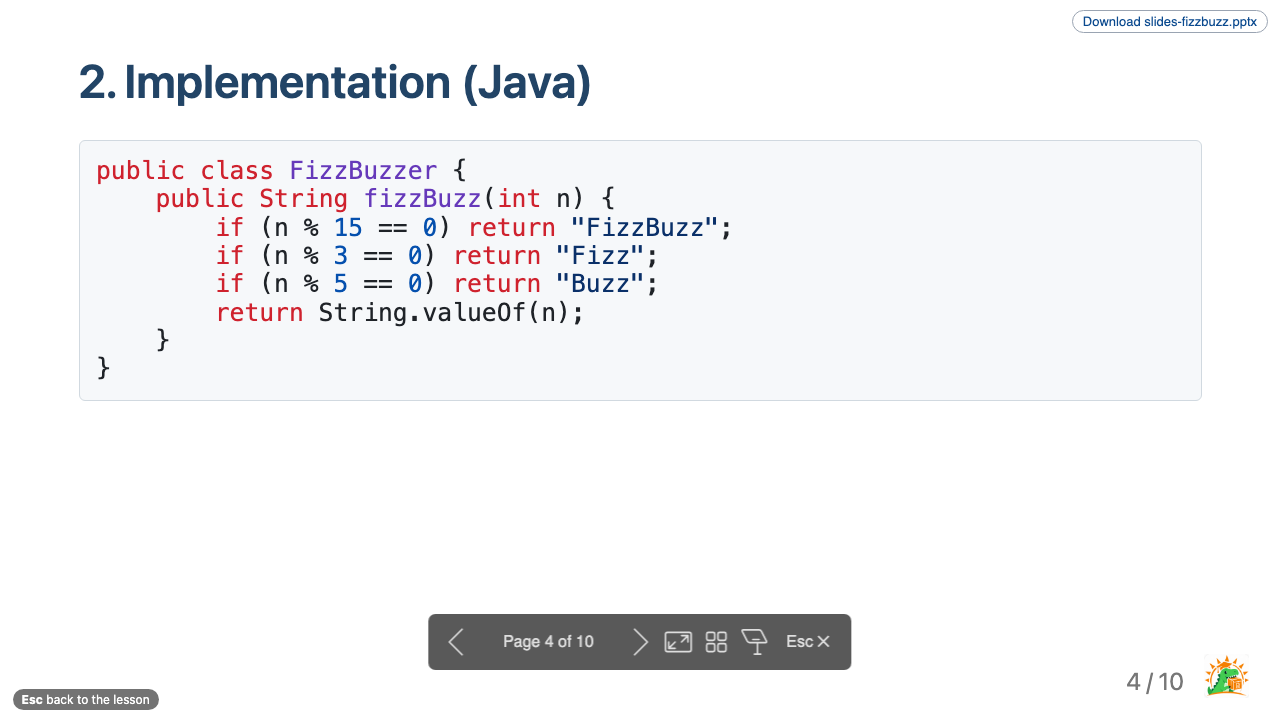
Figure 2. A content slide. The title always sits at the same place, the code of the section is on the slide, and the footer shows 4 / 10 and the logo.
Explanation: look at the fixed title position, which does not move with the amount of content, and at the controls under the slide (move the mouse to show them): previous and next, full screen, overview, presenter view and an Esc button that returns to the lesson.
What is on the slides
- A contents slide lists all section headings, so number the sections of a lesson that becomes slides (
## 1. Introduction). Sources and Bronnen stay unnumbered and are not counted. - Code gets its own slide, and long code continues on the next slide.
- PlantUML and Mermaid diagrams are drawn through Kroki and get a slide each.
- Page numbers read
4 / 10. Appendix slides (a section titled Appendix or Bijlage) are left out of the total. - The preview shows a Slides button in the top right corner of every lesson that has slides. In Brightspace the lesson page has a line of links at the top instead: View as slides, a link for each linked deck, and Download PowerPoint for each editable pptx.
How to set up slides
Slides need no setup for lessons whose file name starts with a prefix you choose. Add this to the course configuration:
{
  "slides": {
    "generateForPrefix": "lesson-",
    "logo": "shared/logo.png",
    "pptx": true
  }
}
generateForPrefixturns every lesson whose file name starts with the prefix into slides.logois shown on the title slide and in the footer. Without it, BSO uses its own logo.pptxalso writes an editable PowerPoint file for every hand-written deck. A deck overrides it withpptx: true,pptx: falseorpptx: autoin its front matter.
A hand-written deck is a Markdown file with slides: true in its front matter. Link it in the lesson with an ordinary Markdown link ([Extra slides](../../slides/slides-fizzbuzz.md)): the link starts the deck on its own and its slides are inserted in the lesson's slides at that place. A deck without a lesson can also be attached with slides.lessons. Use {@include: [text](path.md)} to reuse another file on the slides, one level deep.
An overview lesson can show the slides of the pages it links to as nested sets with the setting nest (a glob such as levels/level-*.md): lesson 2.5 does this with three pages, numbered 2.1 to 2.3. Only the links that match nest; the other links stay ordinary links.
bso lint warns about lessons that become slides when their headings have no number, when they have more than nine sections, and about a --- separator that would give an empty slide.
The user manual has the full reference: Presentations.